
The English characters on the English and Hungarian keyboards are almost at the same place. The exceptions are the Z and Y keys, those are swapped.
When you activate the Hungarian keyboard on a Mac with an English keyboard, the Z key will display Y and the Y key will display Z on the screen. That is the German (and Hungarian) QWERTZ keyboard layout. On an English keyboard, it is much easier to use the QWERTY layout for the Hungarian language too.
On macOS Sierra (10.12.16)
Sierra already contains the Hungarian QWERTY keyboard
To select the QWERTY Hungarian layout
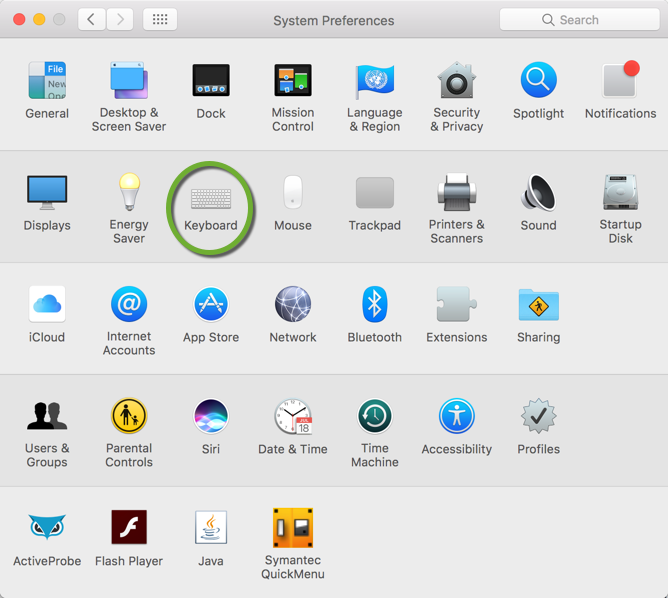
- On the settings page select the Keyboard
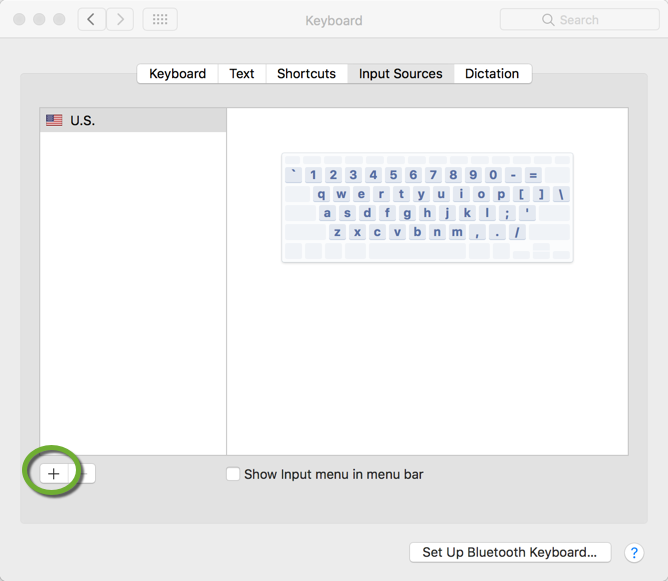
- On the Input Sources tab click the + sign
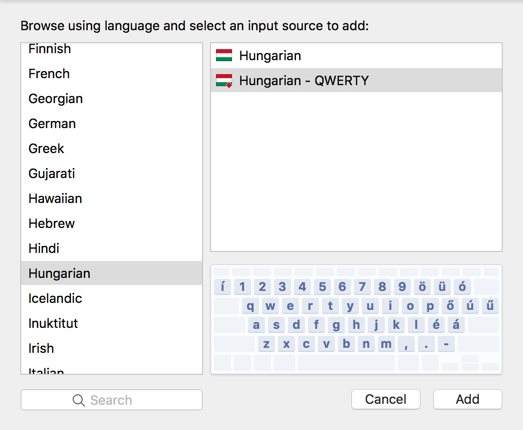
- Select the Hungarian – QWERTY layout and click the Add button
For earlier Mac OS versions
In the past, the following page contained a Hungarian layout for English keyboards at http://blog.felho.hu/hungarian-unicode-qwerty-keyboard-layout.html by “Felho”
The page is not available anymore, but I have found the keyboard layout files in the Wayback Machine internet archive at https://web.archive.org/web/20120315000000*/http://blog.felho.hu/wp-content/felhokeylayout.zip
I have downloaded the ZIP file from the archive and you can download it below in step 1.
Get a QWERTY Hungarian layout
To set up the QWERTY Hungarian keyboard layout
- To download the keyboard file ZIP archive click this link: felhokeylayout.zip
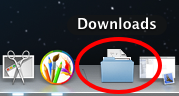
- Click the Downloads shortcut on your desktop
- Click the downloaded layout file to open it
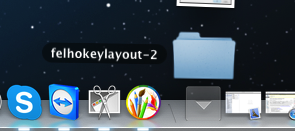
- Select the two files
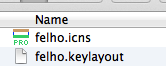
- Copy the two files into the Macintosh HardDrive -> Keyboard Layouts folder
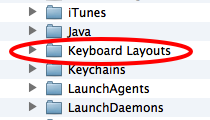
- Log out of the computer
- When you log in again your Mac will find the new keyboard layout
- In the Personal section of the System Preferences select Language and Text
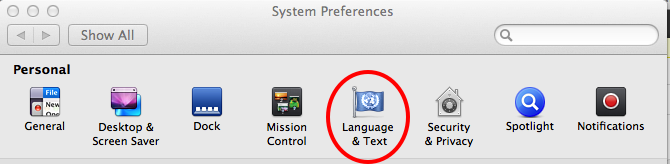
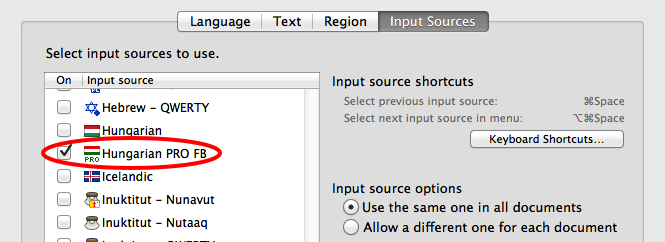
- On the Input Sources tab select the Hungarian PRO FB keyboard
On the top of the screen between the battery status and the time you will see the name of the keyboard layout you currently use.
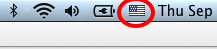
Click the icon to select the other layout.
If you want to create your own special keyboard layout
If you want to create your own keyboard layout, there is a small application that can create a customized keyboard layout: Ukelele.
You can download it from their website at http://scripts.sil.org/cms/scripts/page.php?site_id=nrsi&id=ukelele.

the links are not working : (
Thank you for the notification Viola. I have found the file in the Wayback Machine internet archive and updated the post. You can download the ZIP file in step 1.
Unfortunately i couldn’t copy the files to the Keyboard layouts:( the system didn’t allow to copy anything to this folder:(
Hello Márti,
macOS Sierra (maybe even earlier macOS versions too) comes with the Hungarian QWERTY keyboard. I have updated the post with the installation instructions.