Atlassian Jira can track time spent on tasks. The Time Tracking element displays the sum of all time durations entered into the field.
To edit the already entered values scroll down to the Activity section and select the Work log tab. All entries are editable in the list.
Time reporting
To create a report on the task time tracking
Create a filter
The reporting gadget needs the list of tasks that have time tracking values.
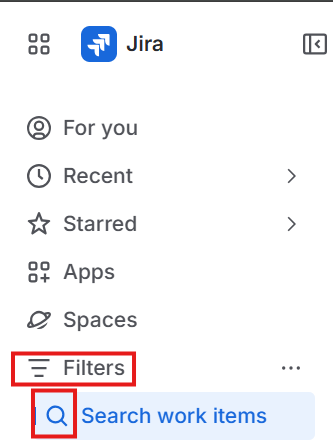
- In the left side menu under Filters select Search work Items
- Select the JQL option and enter the query. In our case the project ID is “SD”
project = SD AND timeSpent > 0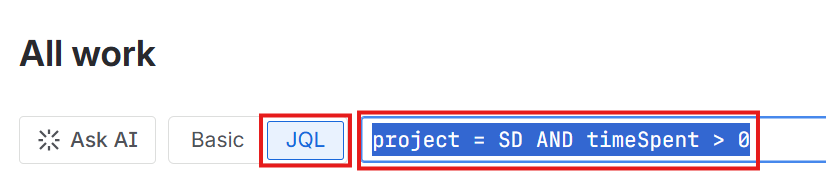
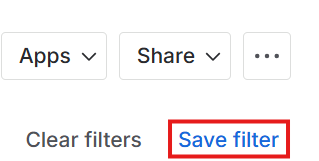
- In the upper right corner click Save filter
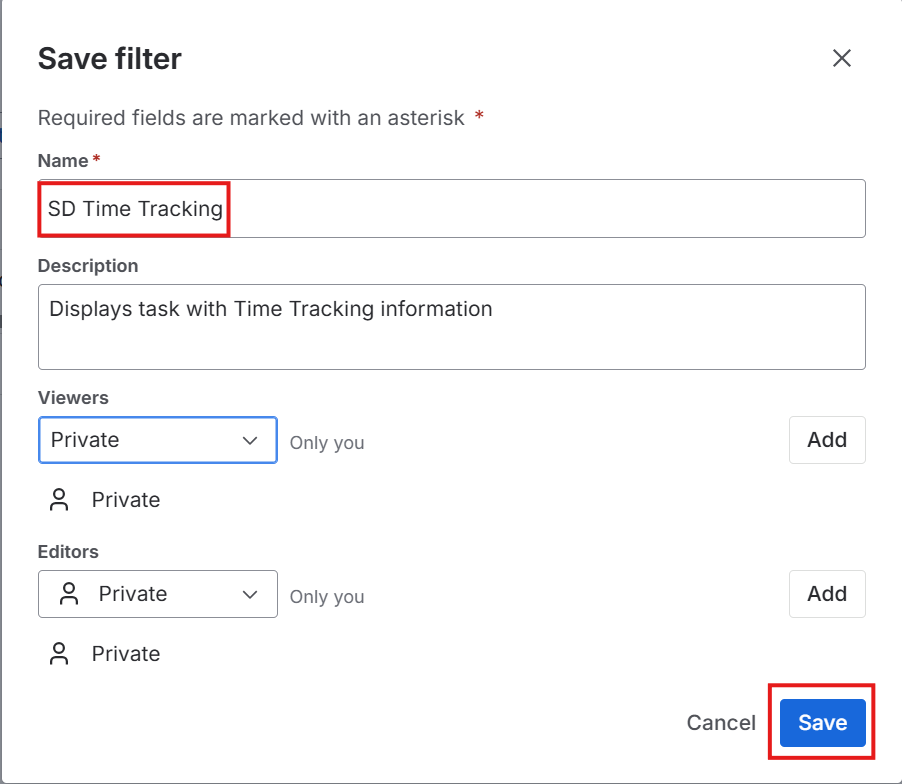
- Enter a name for the filter and click the Save button
Create the report on the dashboard
Create a new Dashboard for the project
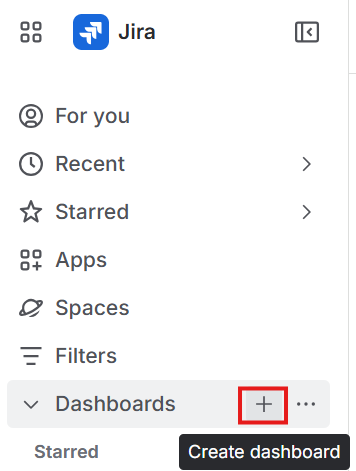
- In the left menu select the + sight next to Dashboards
Add the gadget to the dashboard
- In the upper right corner of the dashboard click the Edit button

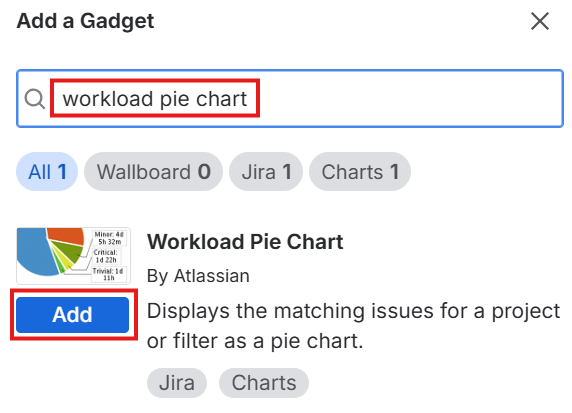
- Enter workload pie chart into the search field and click the Add button of the gadget.
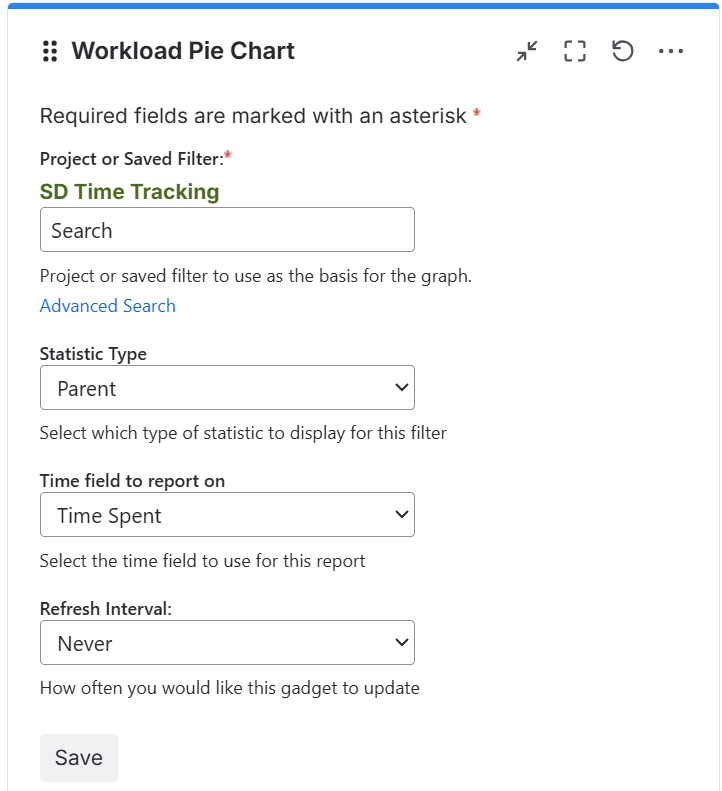
- Select the time tracking filter, set Parent as the Statistic Type, and Time Spent as the time field to report on. Click the Save button.
- The gadget displays the time spent on the parent level, in this case the Epic level.
Data in table format
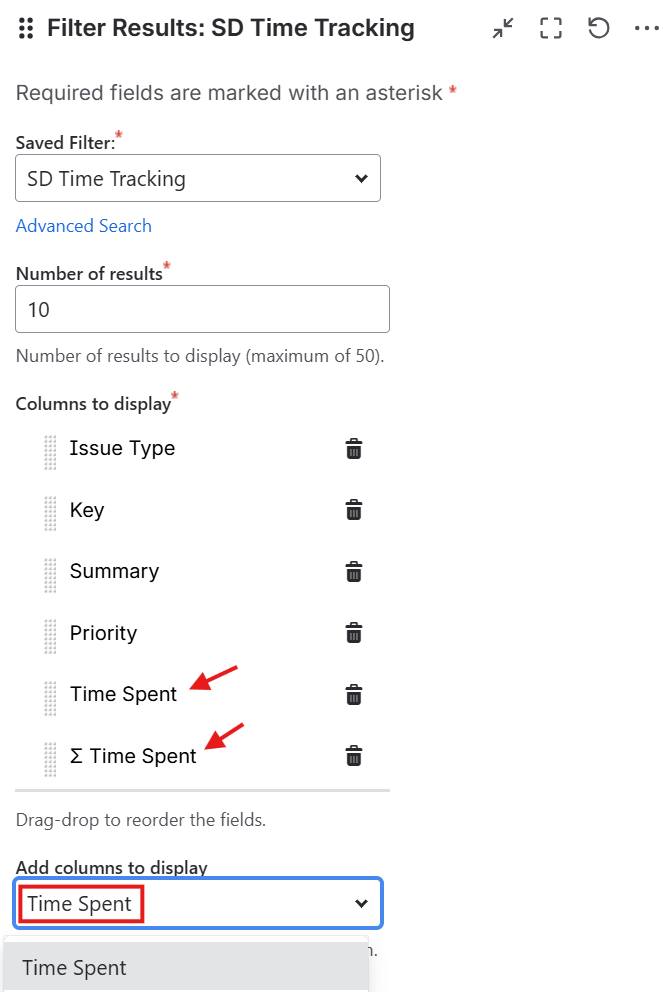
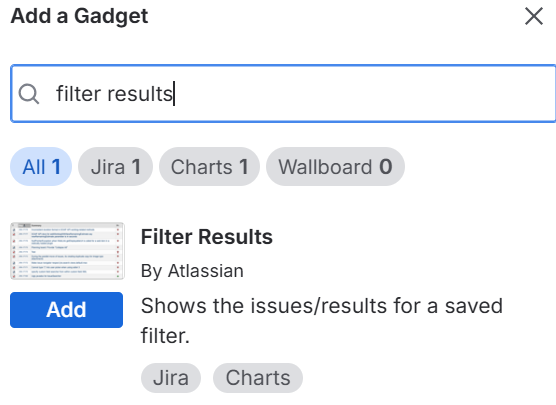
To display the data in a tabular format too, add the Filter Results gadget to the dashboard
Set the name of the filter, and add the Time Spent and Σ Time Spent columns to the output