Skip to content
Pinter Computing

Knowledge Base for IT Professionals, Teachers, and Astronauts

Pinter Computing

Knowledge Base for IT Professionals, Teachers, and Astronauts

  • Home
  • Programming
  • DevOps
  • Project Management
  • Software and Hardware
  • Miscellaneous
  • Egyebek
  • About
  • Experience
  • Education
  • Contact
  • Home
  • Programming
  • DevOps
  • Project Management
  • Software and Hardware
  • Miscellaneous
  • Egyebek
  • About
  • Experience
  • Education
  • Contact
Close

Search

Home/DevOps/Cloud computing/Amazon AWS/Creating CentOS server images with Packer
Amazon AWSDevOpsPacker

Creating CentOS server images with Packer

By Laszlo Pinter
July 10, 2018 2 Min Read
0

The CentOS images are not available on the AWS Quick Start tab.

CentOS publishes official images on the AWS Marketplace, but you need to subscribe to the image to be able to launch it with an automation software, like Terraform.

Find the latest available CentOS image in the AWS Marketplace

  1. Execute this command to display the list of available images
    aws --region us-east-1 ec2 describe-images --owners aws-marketplace --filters Name=product-code,Values=aw0evgkw8e5c1q413zgy5pjce
  2. Select the latest AMI from the list. The images are NOT ordered by date!
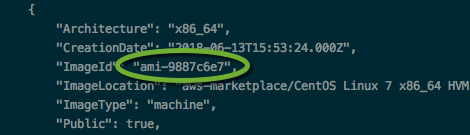
Accept the terms

In every account, you want to launch the image, you have to accept the license agreement terms

If you try to launch the image before you subscribe to it, the error message is displayed

Error launching source instance: OptInRequired: In order to use this AWS Marketplace product you need to accept terms and subscribe. To do so please visit http://aws.amazon.com/marketplace/pp?sku=…
amazon-ebs: status code: 401, request id: []

  1. Follow the link in the error message to http://aws.amazon.com/marketplace/pp?sku=…
  2. Click the Continue to Subscribe button

  3. Click the Accept Terms button
  4. The next page should display
  5. Once the new image has been created, share it with all the accounts you use.

Tags:

AWSCentOSDevOpsPacker
Author

Laszlo Pinter

Follow Me
Other Articles
Previous

Using Terraform

Next

Add SSH key access to a GitHub repository

No Comment! Be the first one.

Leave a Reply Cancel reply

Your email address will not be published. Required fields are marked *

Search

Last Changes

  • DevOps Engineering part 1. (Mac) - Make your Macintosh easier to use June 25, 2026
  • Japan travel tips June 22, 2026
  • How to stop the rain and snow in Cities: Skylines II June 20, 2026
  • Cities: Skylines II Developer Mode June 20, 2026
  • 'CSII_MANAGEDPATH' has incorrect path(s) when building Cities: Skylines II mod June 20, 2026

Tags

.NET .NETcore 3Dprinting ASP.NET Core AutodeskInventor AWS C# Chef cloud DevOps Docker EntityFramework Games Git Go iOS iPad iPhone iPod Java Kubernetes Linux MacOSX MSSQL MVC Node.js Packer PowerShell Python RDS RightScale Ruby security Splunk TeamCity Terraform TestKitchen Tomcat Ubuntu Vagrant VirtualBox VisualStudio Windows WordPress Xcode

Recent Comments

  • Zengei László on MyHeritage családfa exportálása és küldése emailben
  • Raúl Castillo on DynDns update error
  • MICHAEL on Windows Media Player 12 cannot find the album information
  • Nargis on Configure Epson ET-3850 scanning on Windows 11
  • Venczelné Zemen Erika on Delta S2302 termosztát programozása

–

  • Log in
  • Entries feed
  • Comments feed
  • WordPress.org
Copyright 2026 — Pinter Computing. All rights reserved.