
Standalone Windows executables are compiled ahead of time (AOT) and distributed as three executable files (.exe, .dll, .runtimeconfig.json). This format is ideal for small executables called from the command line or from other applications.
To create an AOT Windows executable in Visual Studio 2022 or later
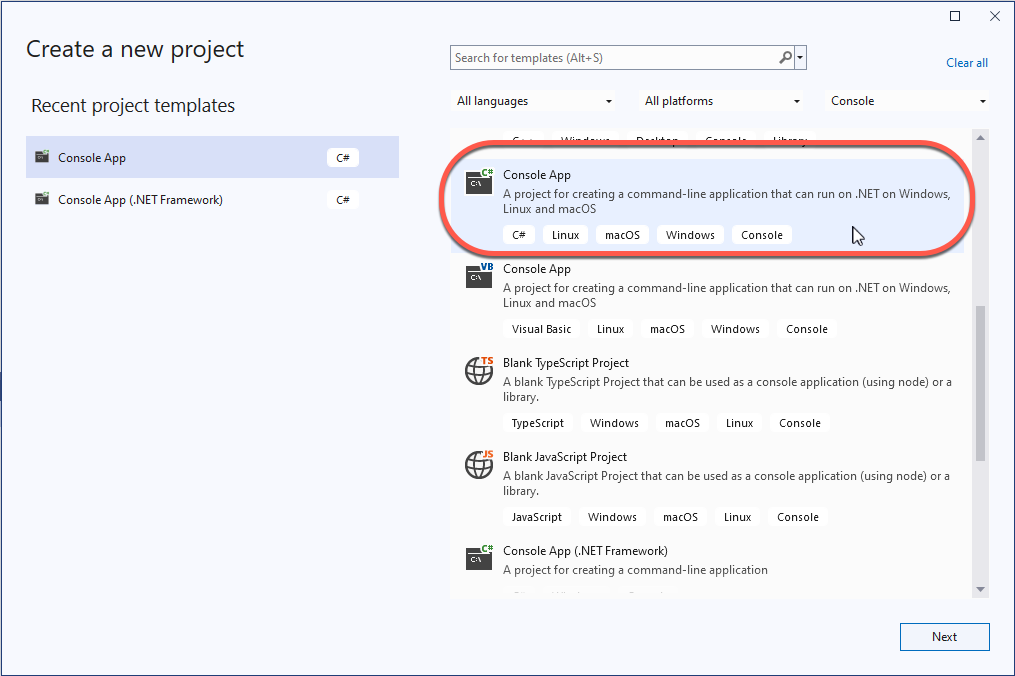
Start a new project
- Create a C# console app
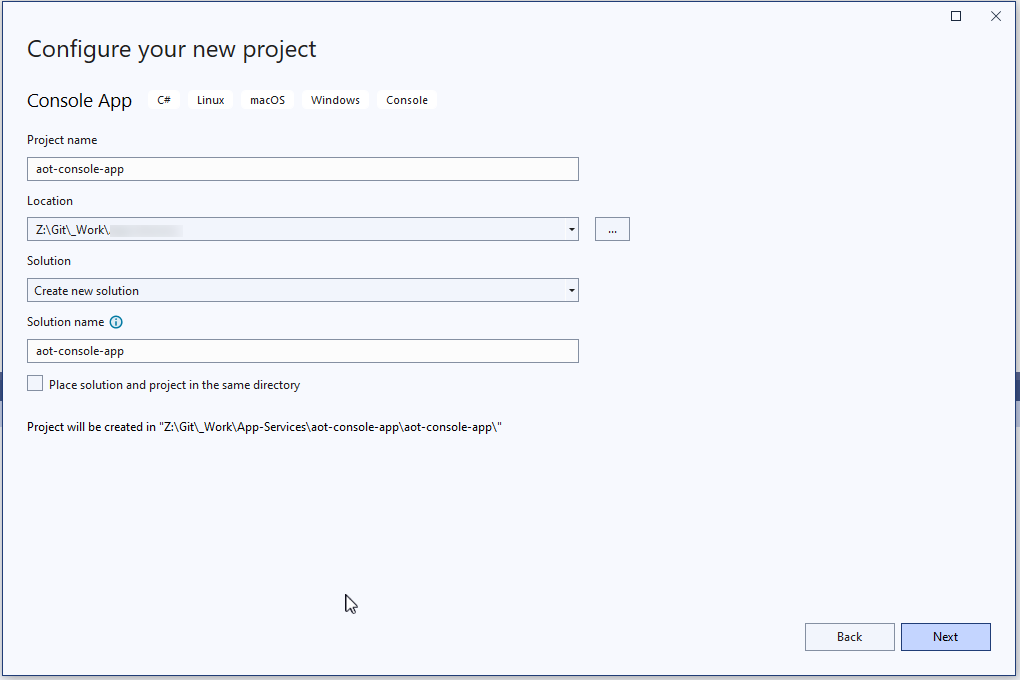
- Name the app
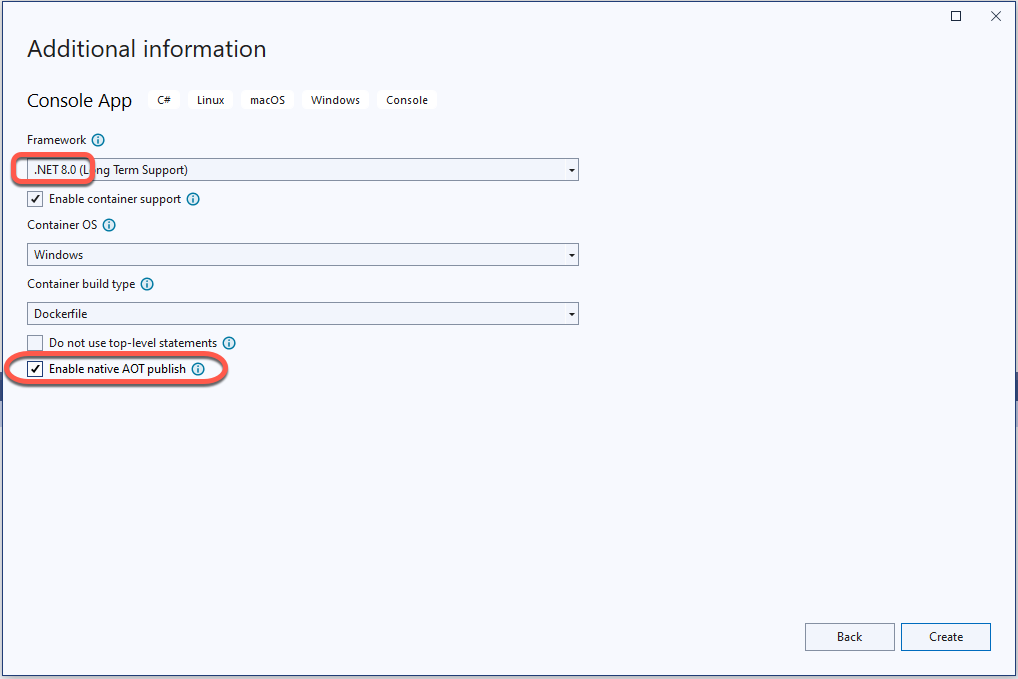
- Select .NET 8.0 or later framework, and Enable native AOT publish
- To test the application we will write some temporary code in Program.cs
// See https://aka.ms/new-console-template for more information
Console.WriteLine("Test executable started");

// Read the command line arguments into an array
string[] arguments = args;
Console.WriteLine($"Number of command line arguments {arguments.Length}");

if (arguments != null && arguments.Length > 0)
{
    var firstArgument = arguments[0];
    Console.WriteLine($"First argument = {firstArgument}");

    if (firstArgument == "ERROR" )
    {
        Console.WriteLine("Throw divide by zero exception");
        int a = 0;
        int b = 1 / a;
    }

}

Console.WriteLine("Test executable exited without error");
Build the executable
Prerequisites
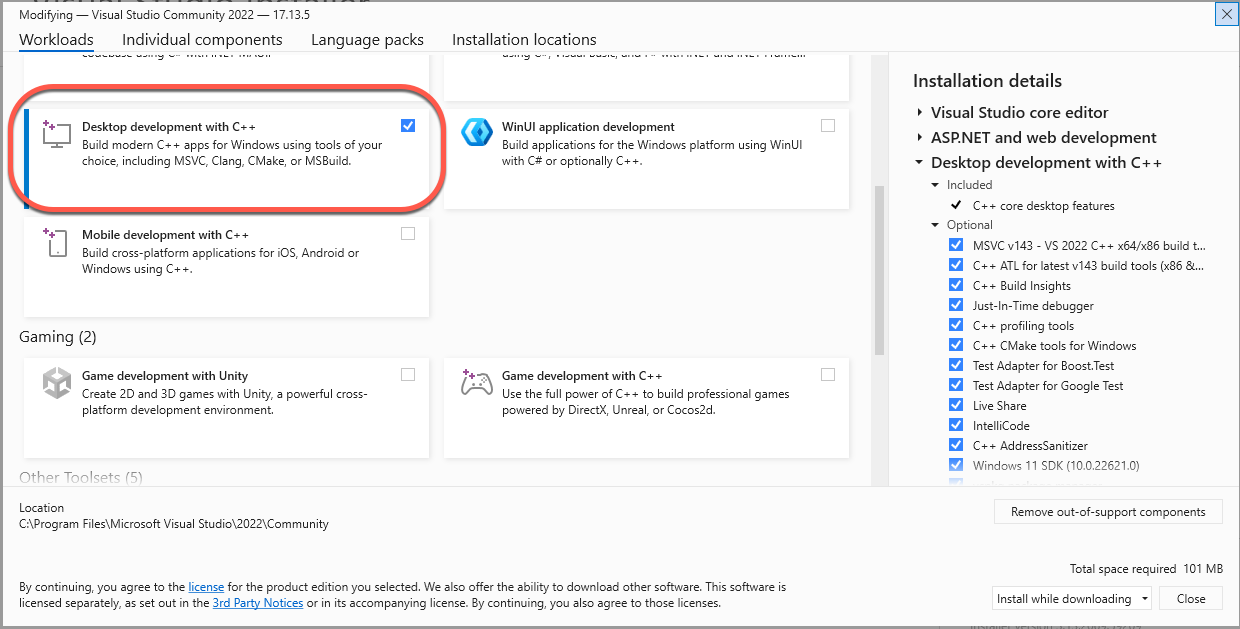
To be able to build, link and publish the standalone executable we need to install the “Desktop development with C++” Visual Studio workload.
- In the Tools menu select Get Tools and Features

- Install the Desktop development with C++ workload
Publish the executable
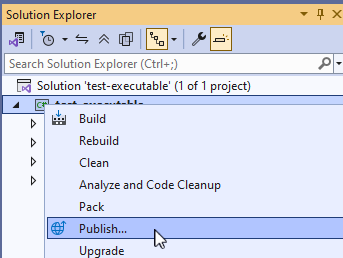
- In the Solution Explorer right-click the project and select Publish
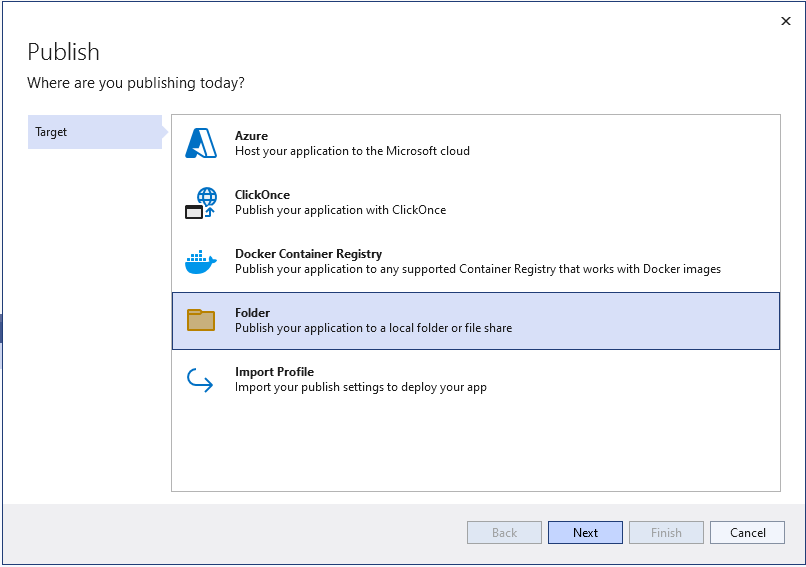
- Select Folder as the target
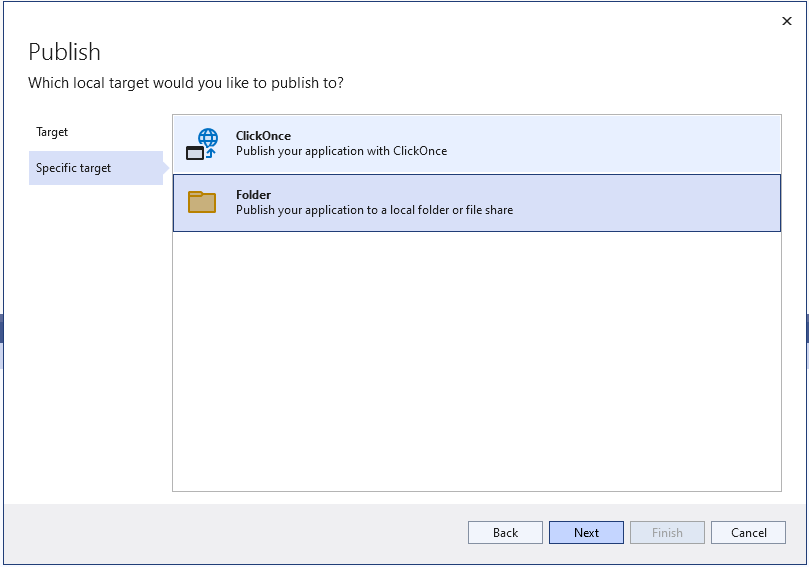
- Select Folder again for the specific target
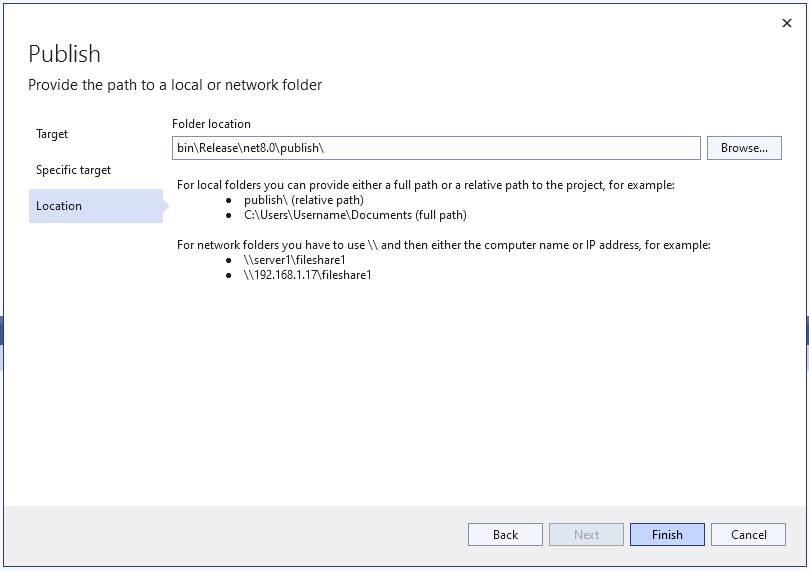
- Select the target location and click Finish
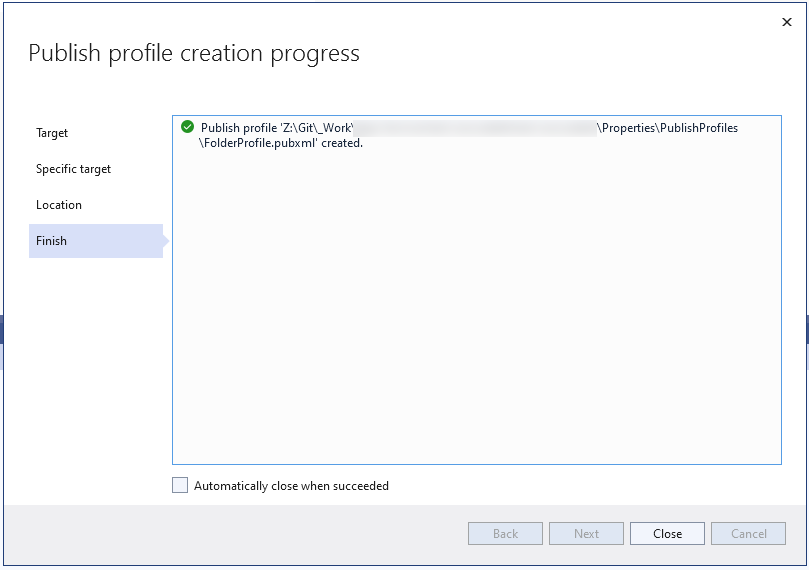
- Close the dialog when the build has been completed
Running the standalone executable
By default the output is placed in the bin\Debug\net8.0 directory
To run the (not really) “standalone” application, we need the following three files in the same directory:
- .exe
- .dll
- .runtimeconfig.json
Setup project
To access the .msi file
- Build the Setup project
- The file is saved at Setup/[PROJECT_CONFIGURATION]/Setup.msi
See Visual Studio Installer Projects Extension and .NET on creating a Setup project
Troubleshooting
See RuntimeIdentifier is required for native compilation. Try running dotnet publish with the -r option value specified. in case you get this error during publishing.
