
In LM Studio Bionic, the AI autonomous agent interface
- click the button to open the side menu

- At the bottom of the left menu click the Settings item

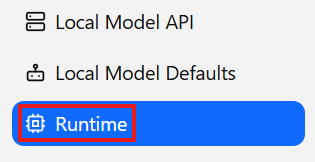
- At the bottom left corner click Runtime
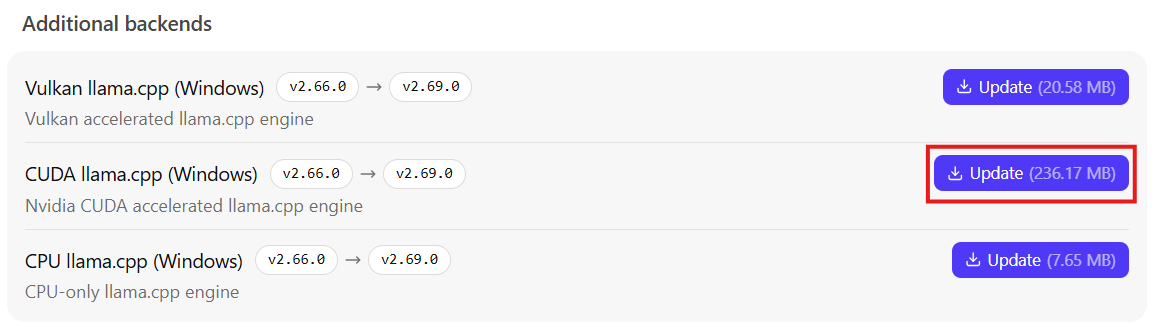
- If your computer has an Nvidia graphics card click the Update button in the CUDA section
- In the upper right corner click the Back to app button

- Download the Model: Go to the search tab and search for
Gemma 4 26B. Look for the GGUF formats (often provided by repositories like Unsloth or Bartowski). Download the Q4_K_M format.
https://huggingface.co/majentik/gemma-4-26B-A4B-it-RotorQuant-GGUF-Q4_K_M
it = instruction tuned for human interaction to understand human intents and needs
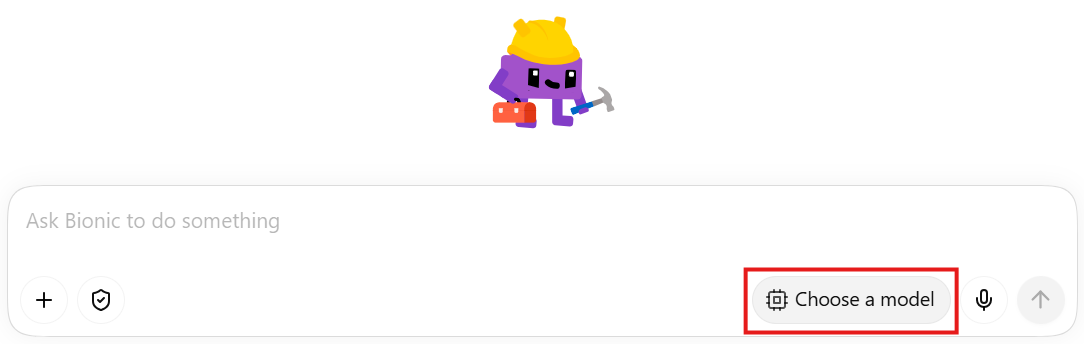
- On the main page click the Choose a model button
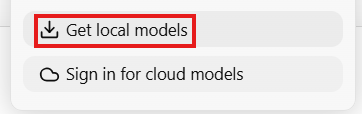
- Click the Get local models button
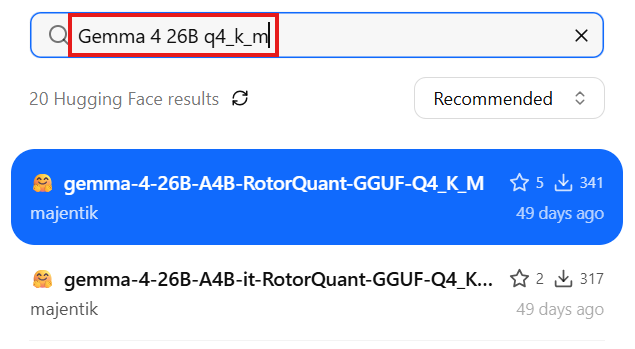
- Enter Gemma 4 26B q4_k_m into the search field and select the latest model
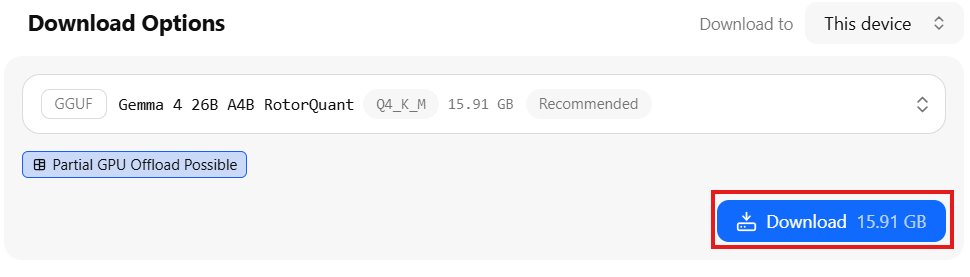
- On the right side click the Download button
gemma-4-26B-A4B-it-RotorQuant-GGUF-Q4_K_M
majentik/gemma-4-26B-A4B-it-RotorQuant-GGUF-Q4_K_M
