To deploy the new version of a Docker container image and launch new tasks with the new version
Build and push the new Docker image
- Build the new Docker container image
- Push the new image to ECR (Elastic Container Registry)
Create a new revision of the ECS Task Definition
Open the ECS section of the AWS Console
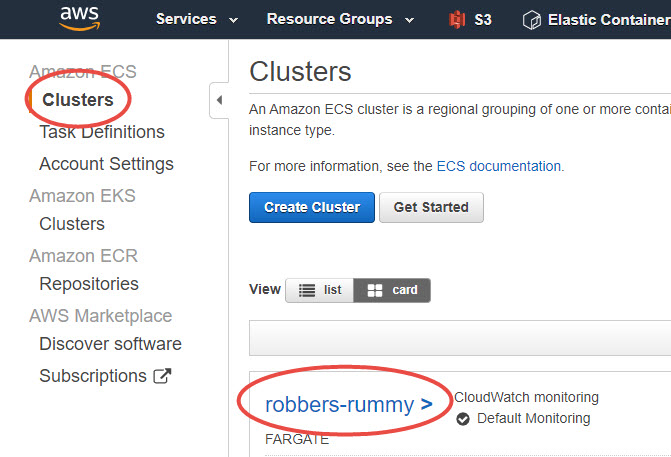
On the Amazon ECS page click Clusters and select the cluster
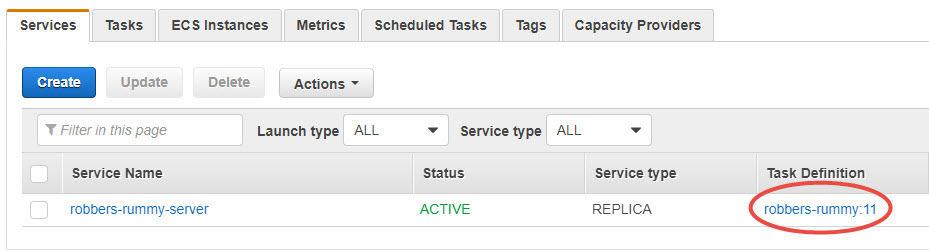
On the Services tab click the Task Definition
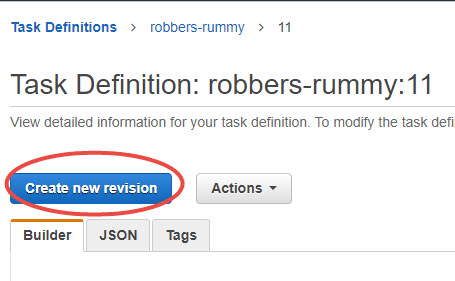
On the Task Definition page click the Create new revision button
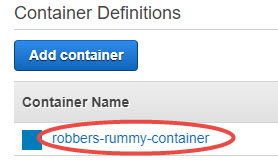
Scroll down to the Container Definitions section select the container definition
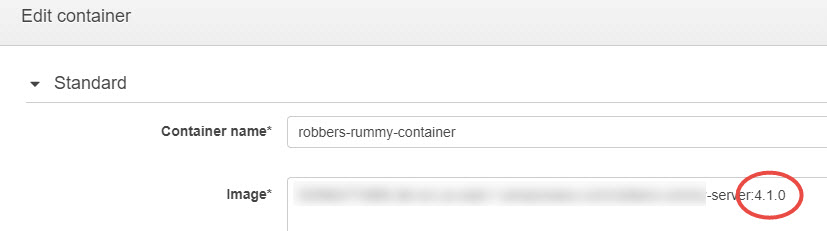
In the Image field update the Docker image version
Click the Update button at the bottom of the Container page

Click the Create button at the bottom of the Task Definition page

A new task definition revision has been created

Update the Service to use the new Task Definition revision
Go back to the Cluster
On the Services tab select the service
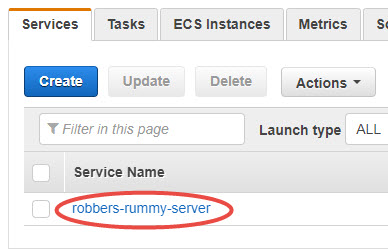
In the upper right corner click the Update button

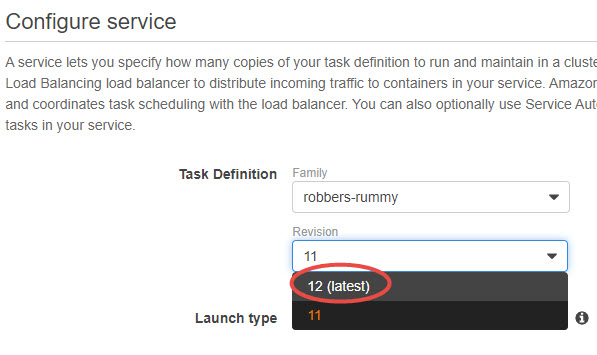
In the Revision dropdown select the new Task Definition revision
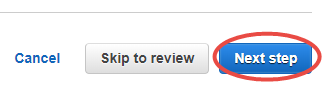
At the bottom of the Configure service page click the Next step button. If you click the “Skip to review” button, the task definition revision is not updated in the service!!!
Select the CodeDeploy deployment

At the bottom of the Review page click the Update Service button

Click the service name to return to the service
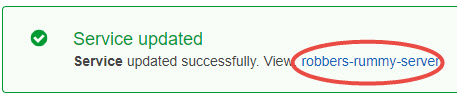
Deregister the old Task Definition revision
If we don’t use the blue-green deployment with CodeDeploy, we need to manually deregister the old revision of the task definition to force the service to direct all traffic to the new task definition.
To tell the service to use only the new revision of the Task Definition deregister the old revision otherwise both versions will run side-by-side in the service
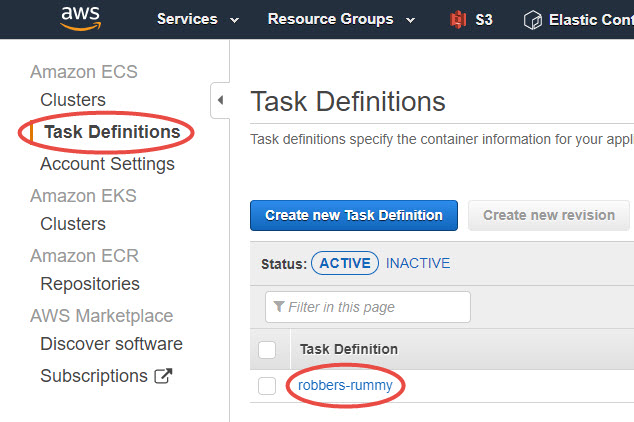
Return to the Task Definition
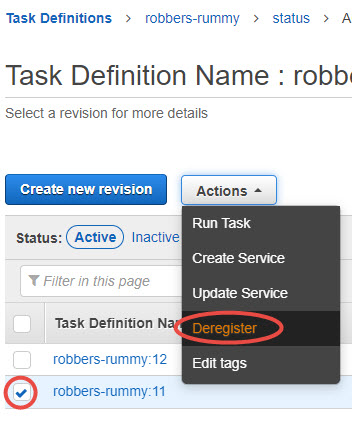
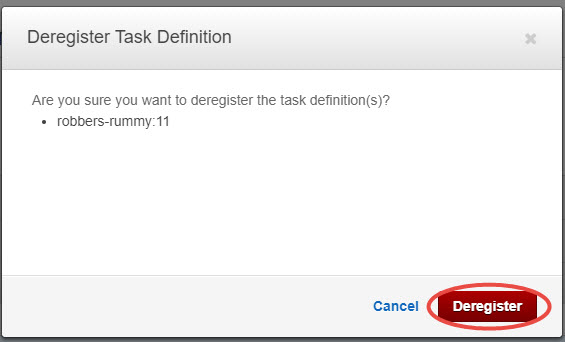
Select the old revision of the Task Definition and select Deregister in the drop-down
Click the Deregister button
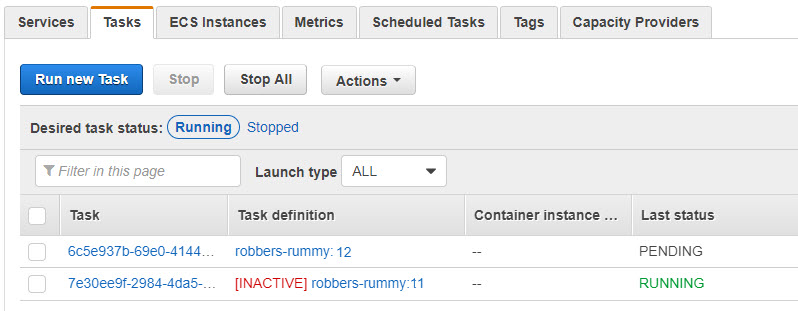
Check the running tasks
On the Tasks tab of the cluster, only the new revision of the Task Definition should run. If there are open connections to the old revision, it stays in running state with the INACTIVE status until those connections are closed.
Update the Scheduled Tasks
If you have configured a scheduled task based on the task definition you need to update the task definition reference to specify the latest revision.
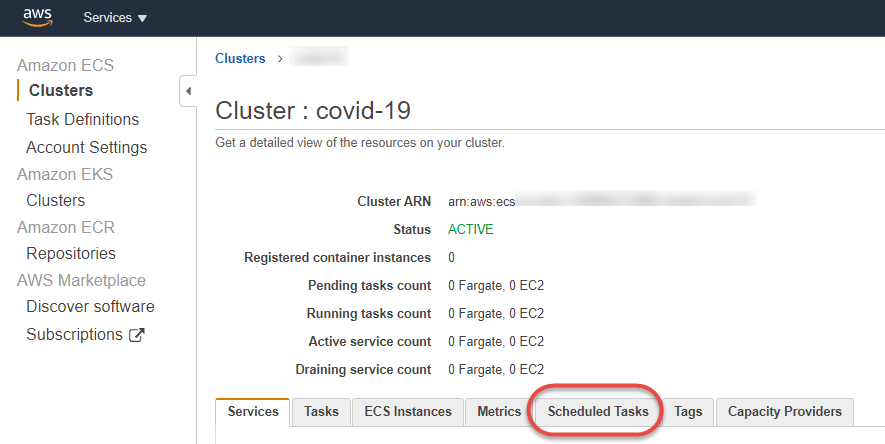
Select the cluster
Select the Scheduled Tasks tab
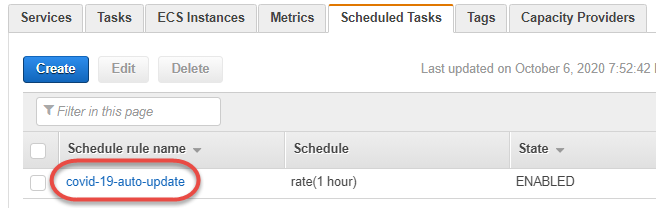
Select the scheduled task
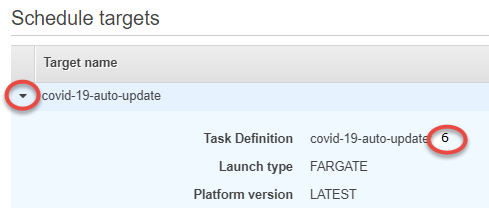
Click the arrow next to the Target name and check the Task definition revision
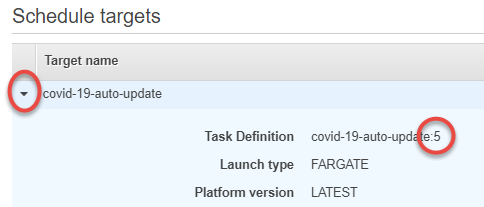
To edit the Task definition revision click the Edit button in the upper right corner

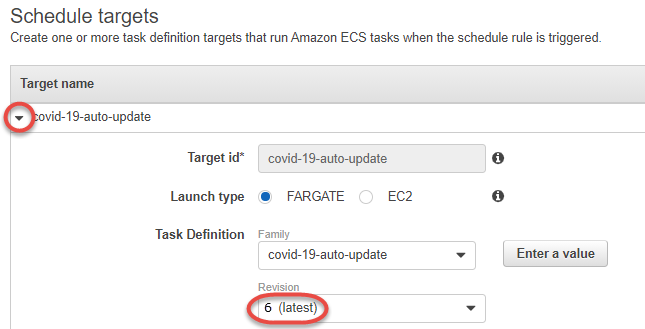
In the Schedule targets section click the arrow next to the Target name. The revision will be auto-populated with the latest value.
Click the Update button at the bottom of the page to save the new value.
Click the View scheduled task button to check the revision

Click the arrow next to the Target name and check the revision.