
There are many options to configure the iDrive cloud backup. Here are a few settings that can be useful for better recovery.
Install iDrive
- Download iDrive from https://www.idrive.com/
- Install the application
Log into the application
Use the email address and password of the account owner to log into the application. One personal account can back up an unlimited number of computers as long as the space purchased can accommodate the backups
Multiple hard drives
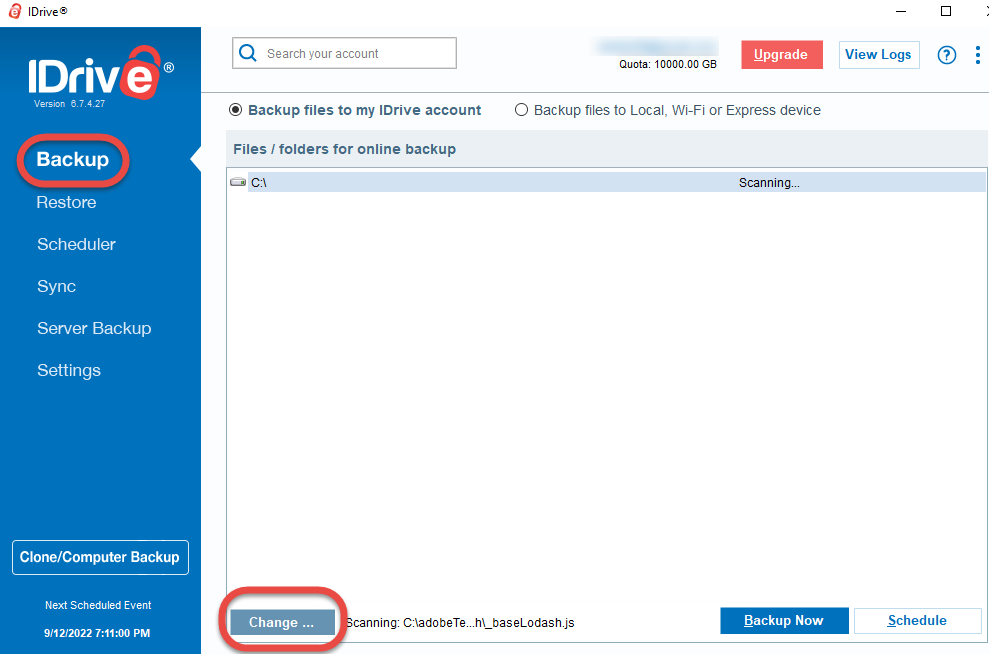
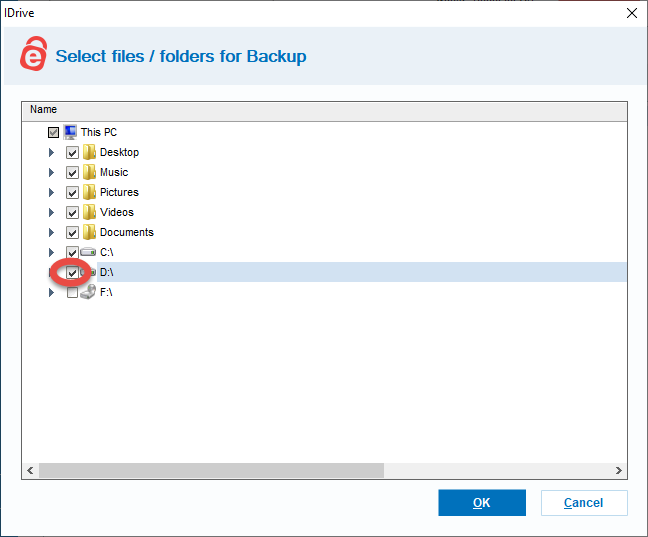
- If you have multiple hard drives in your computer consider backing up all of them. To select all hard drives, on the Backup tab click the Change button
- Select the second hard drive and click the OK button
Frequent backup
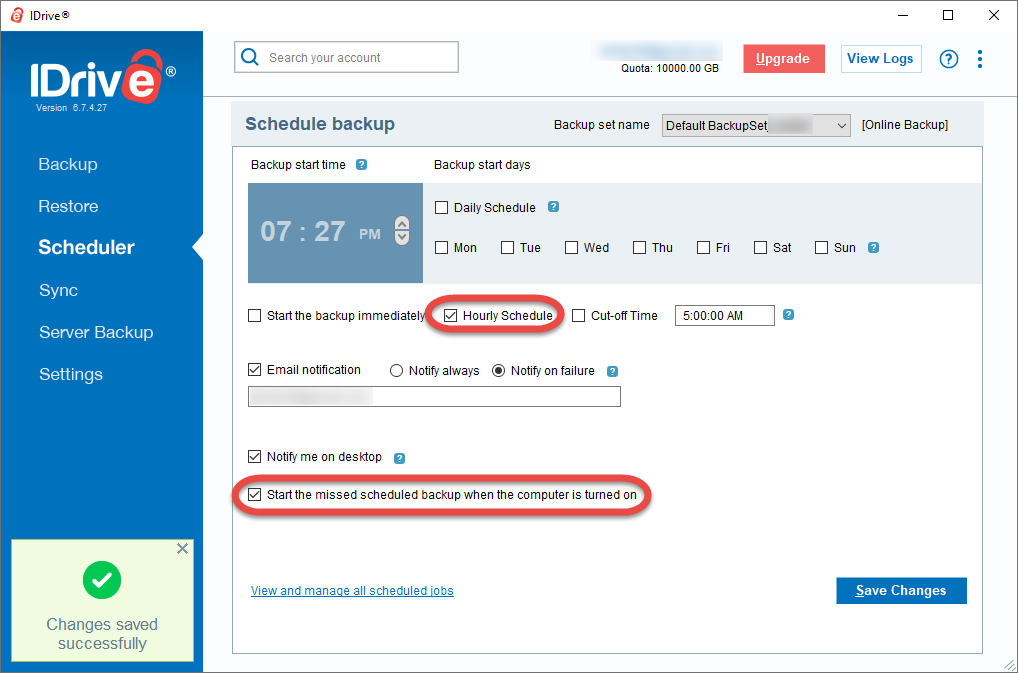
If you want to make sure your files are backed up frequently, and you don’t miss a backup if your computer was turned off during the scheduled backup
- On the Settings page, Scheduler tab select
- Hourly schedule
- Start the missed backup when the computer is turned on and click the Save changes button
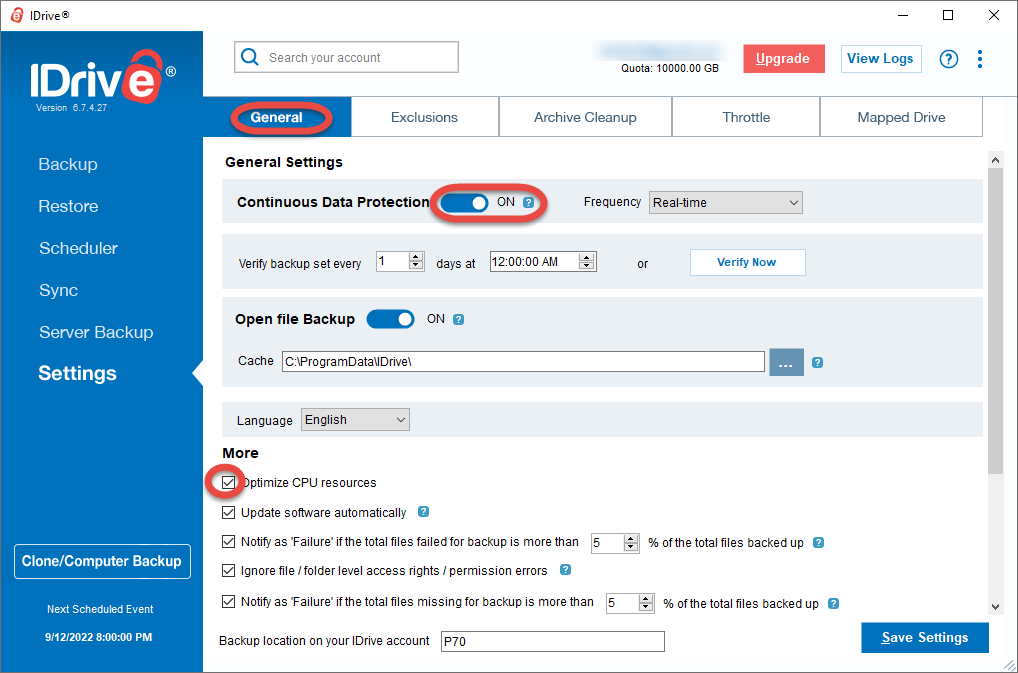
- On the Settings page, General tab
- Enable Continuous Data Protection
- Enable Ask me where to save files / folders before restore
- Disable Wake up the computer from Hibernate / Sleep mode
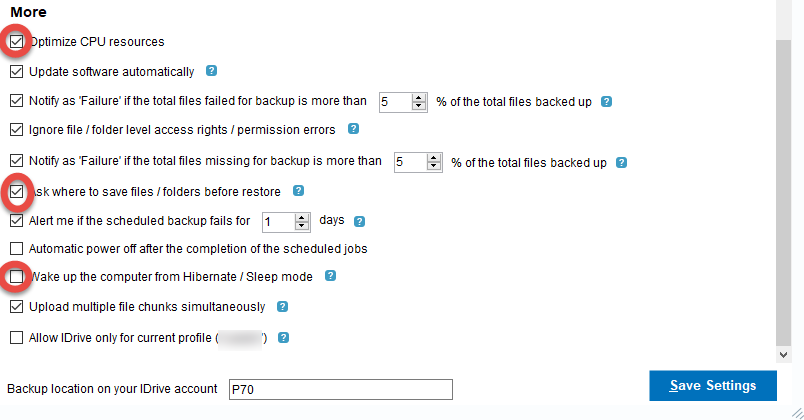
- Enable Continuous Data Protection
Do not exclude important files
To backup all important files
- On the Settings page, Exclusion tab uncheck
- AppData
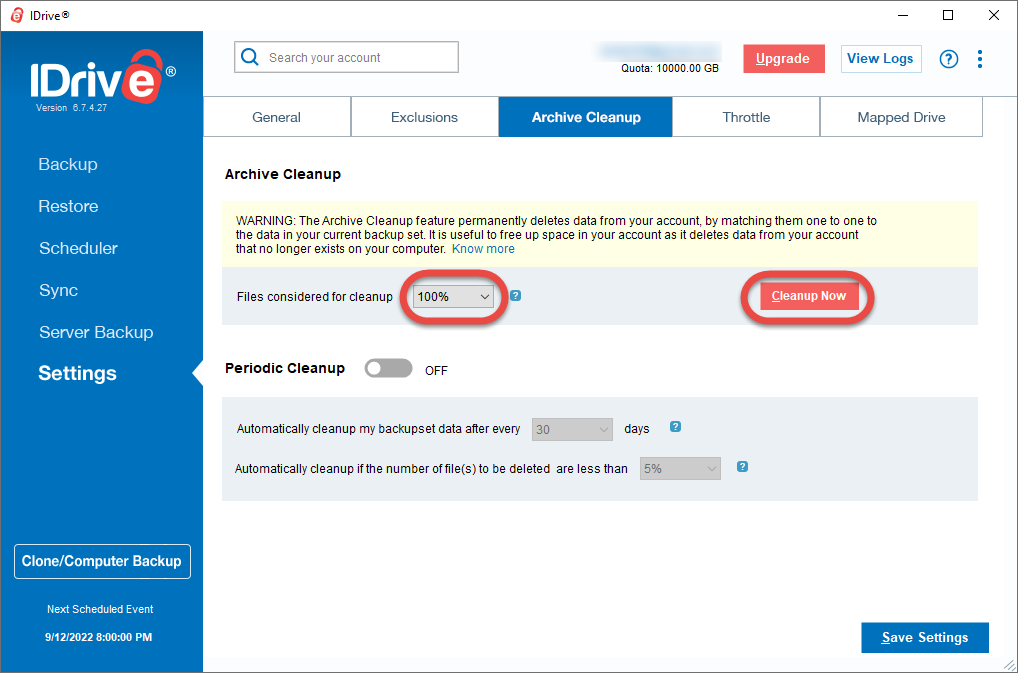
- AppData
For better user experience
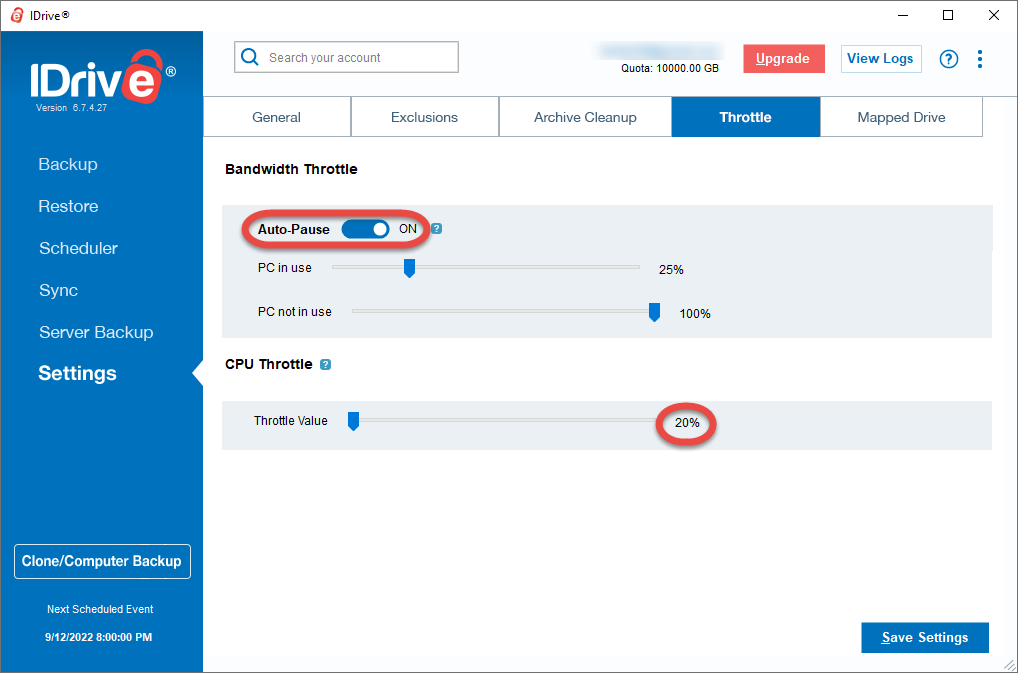
To keep your computer running fine even during backups you can limit the backup activity.
- On the Settings page, Throttle tab enable Auto-Pause and set the CPU throttle value to 20%
If you run out of space
There are options to manage the space you use in the cloud.
WARNING: These steps delete files from the cloud which are not on your computer. So if you have deleted files accidentally, first restore those files from the cloud.
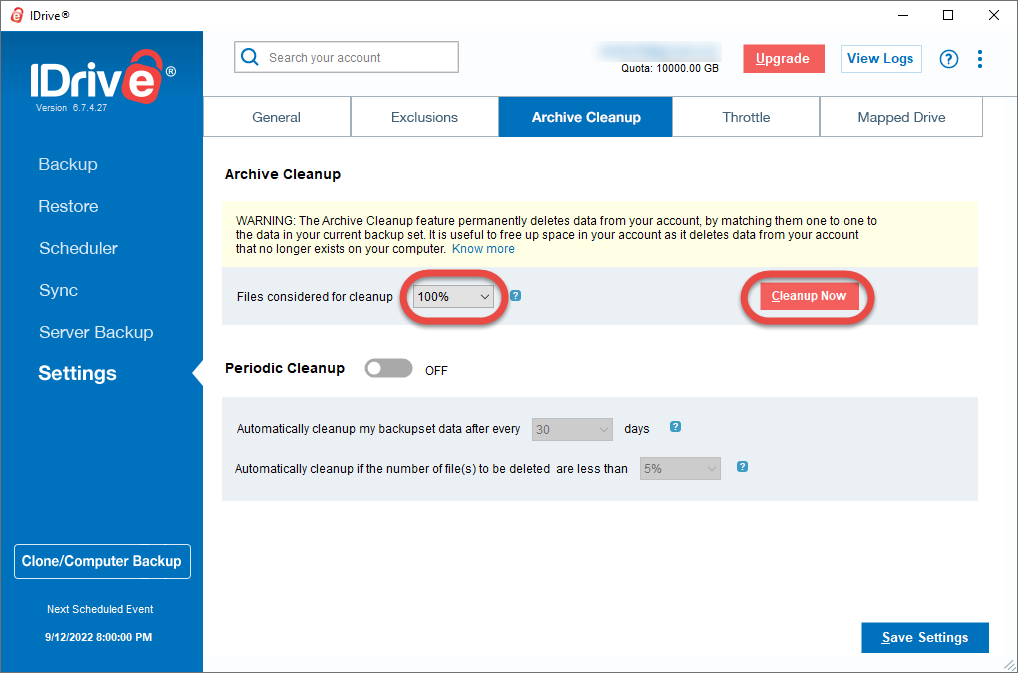
Delete all files from the cloud that have been already deleted from your computer
This step immediately deletes all files from the cloud that have been deleted from your computer, even accidentally.
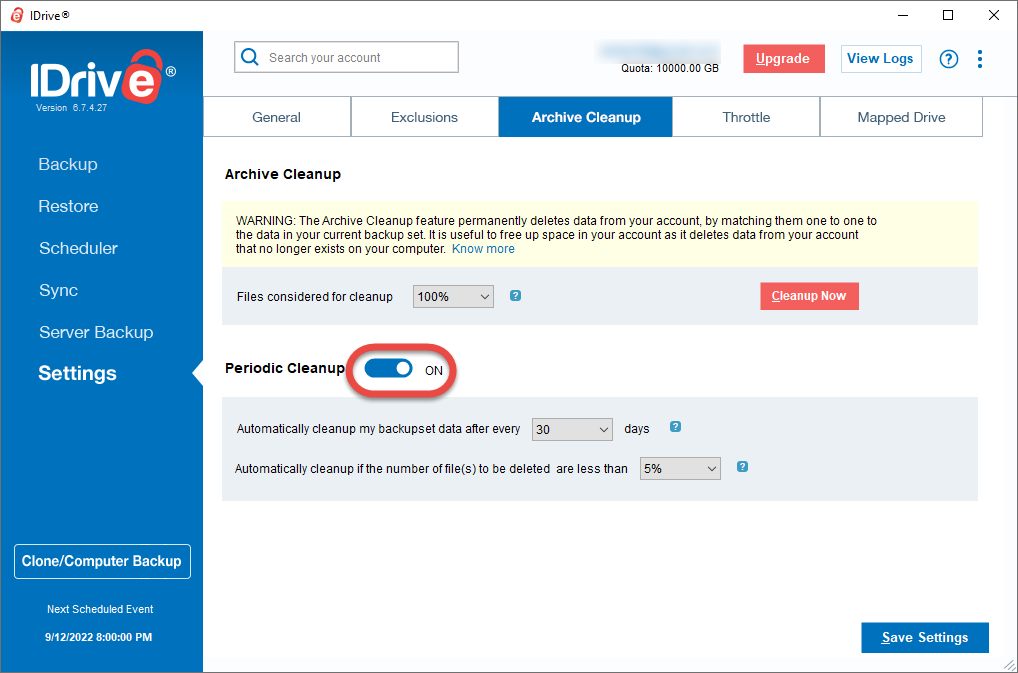
- On the Settings page, Archive Cleanup tab set the Files considered for cleanup to 100%, and click the Cleanup Now button
To avoid running out of space in the future
You can set up automatic cleanup to delete files that you delete from your computer, but it will delete files that even were deleted accidentally.
- On the Settings page, Archive Cleanup tab enable Periodic Cleanup. This will delete files every 30 days from the cloud that are no longer on your computer. If the number of files to be deleted is greater than the selected percentage (5% by default), the cleanup does not happen to avoid losing files in case of system failure or accidental loss of many files.
Manage multiple computers
With an iDrive personal account you can back up unlimited number of computers into the cloud space you have purchased.
To monitor the backup status of multiple computers
- Log into the iDrive web interface at https://www.idrive.com/
- On the Dashboard you can check the backup status of all your computers

To configure a computer remotely
- On the Dashboard click the Setup button of the computer

To manage multiple computers
- On the Settings page set the option and click the broadcast button to set the option on multiple computers
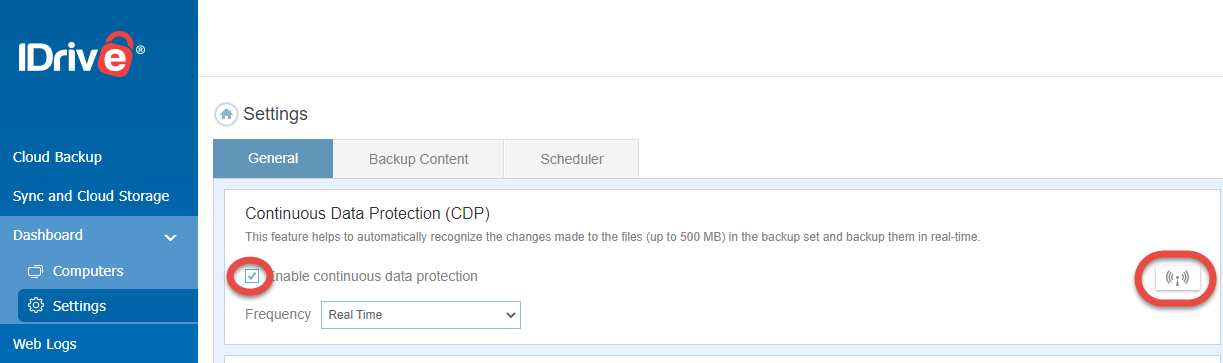
- Click the Yes button to send the setting to all computers


Thank you!