To set up the continuous backup of a WordPress site
Set up the backup location
In this example we will use AWS S3 for backup file storage
- Log into the AWS console at console.aws.amazon.com
Create an s3 bucket
- Enter s3 into the search field and select S3

- Above the bucket list click the Create bucket button

- Use the recommended Account Regional namespace to create a unique name using your account ID. If you already have an S3 bucket with the correct security settings click the Choose bucket button and select the bucket to copy the settings from
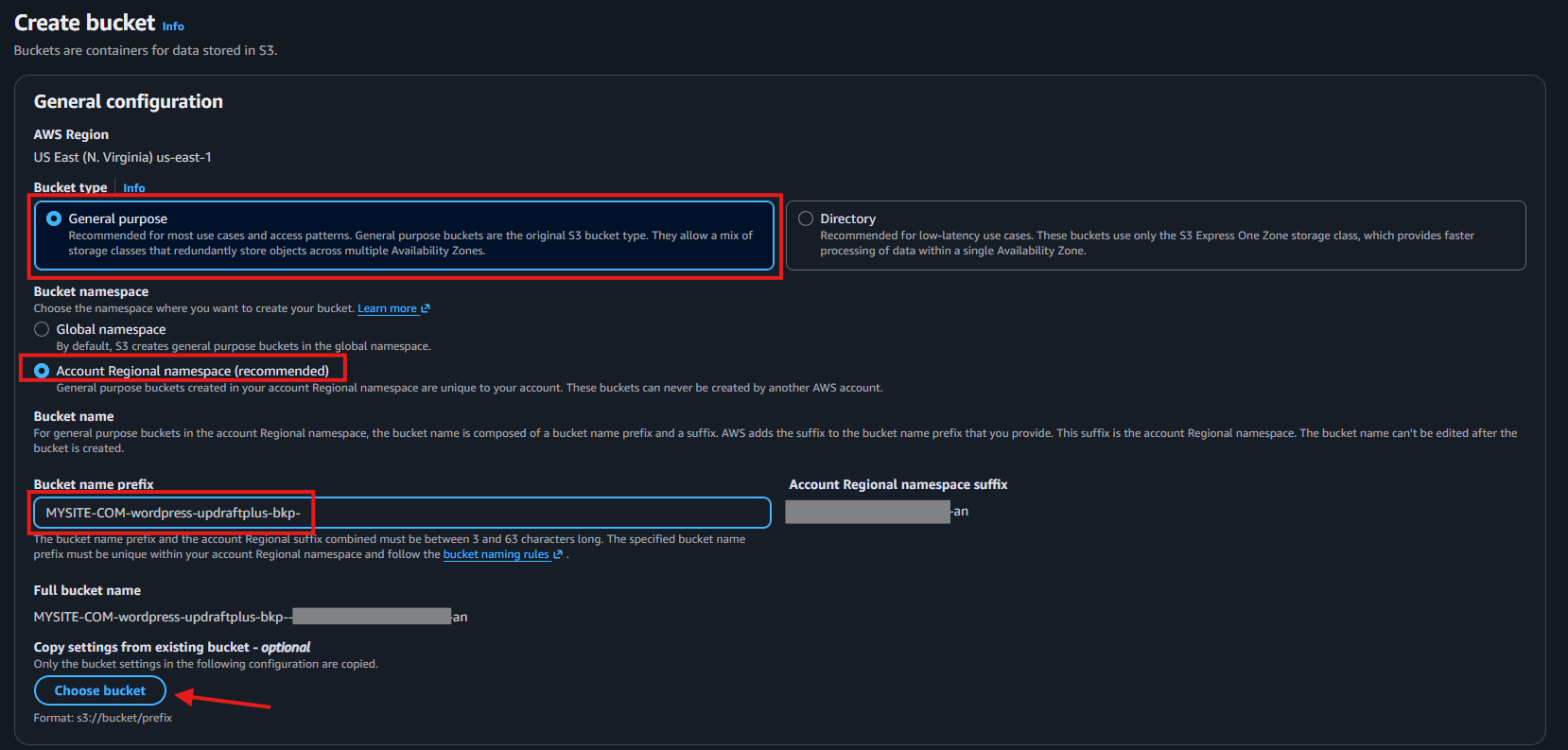
- Make sure ACLs are disabled, and public access is blocked
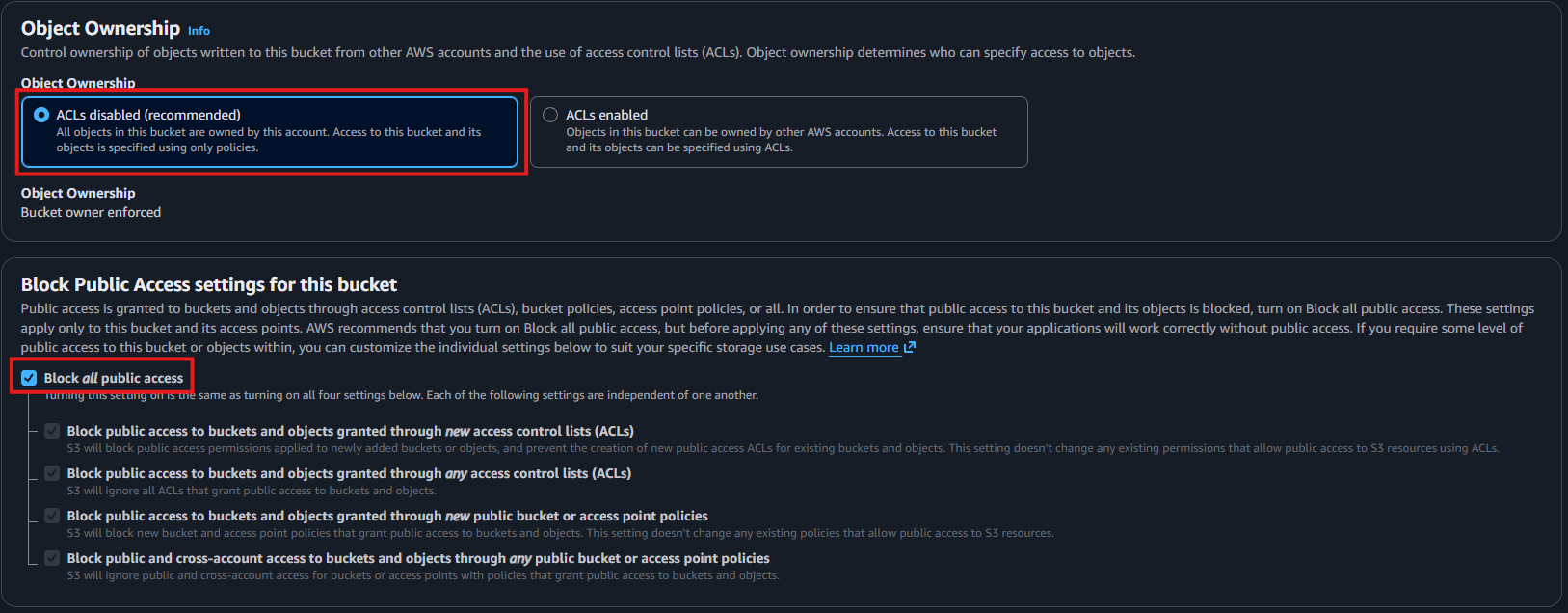
- At the bottom of the page click the Create bucket button

Create an IAM policy
The IAM policy will restrict the service account to list, read and write the contents of one bucket only to prevent access to other S3 buckets in the account.
- Enter iam into the search field and select IAM

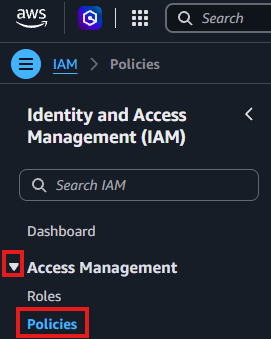
- In the Access Management section select Policies
- In the upper right corner click the Create policy button

- In the upper right click the JSON button

- Paste this JSON into the Policy editor. Make sure to use the name of your S3 bucket in the Resource section. We need to list the same bucket twice, once to provide access to the bucket, and once with the wildcard to provide access to the contents
{
	"Version": "2012-10-17",
	"Statement": [
		{
			"Effect": "Allow",
			"Action": [
				"s3:ListBucket",
				"s3:GetBucketLocation",
				"s3:PutObject",
				"s3:GetObject",
				"s3:DeleteObject"
			],
			"Resource": [
				"arn:aws:s3:::MYSITE-COM-wordpress-updraftplus-bkp-MYACCOUNTNUMBER-us-east-1-an",
				"arn:aws:s3:::MYSITE-COM-wordpress-updraftplus-bkp-MYACCOUNTNUMBER-us-east-1-an/*"
			]
		}
	]
}- In the lower right click the Next button

- Enter the name of the policy
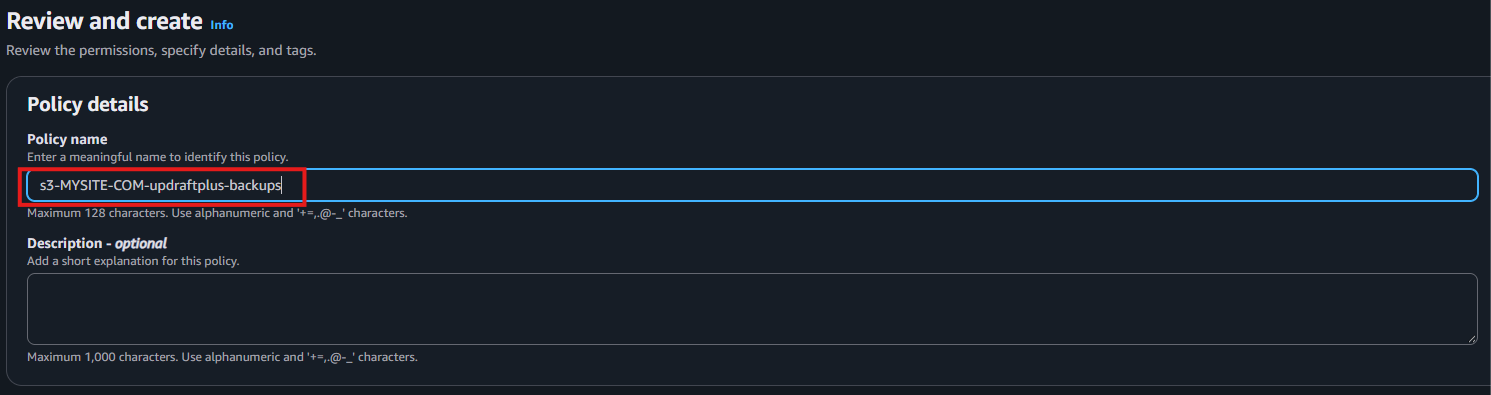
- In the lower right corner click the Create policy button

Create a new IAM user
- Enter iam into the search field and select IAM
- On the left side in the Access Management section select IAM users
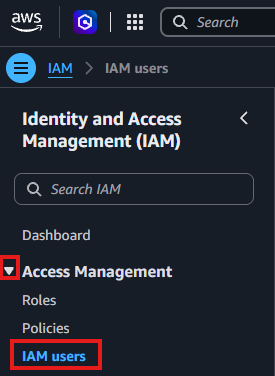
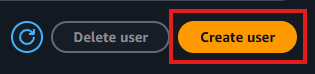
- In the upper right click the Create user button
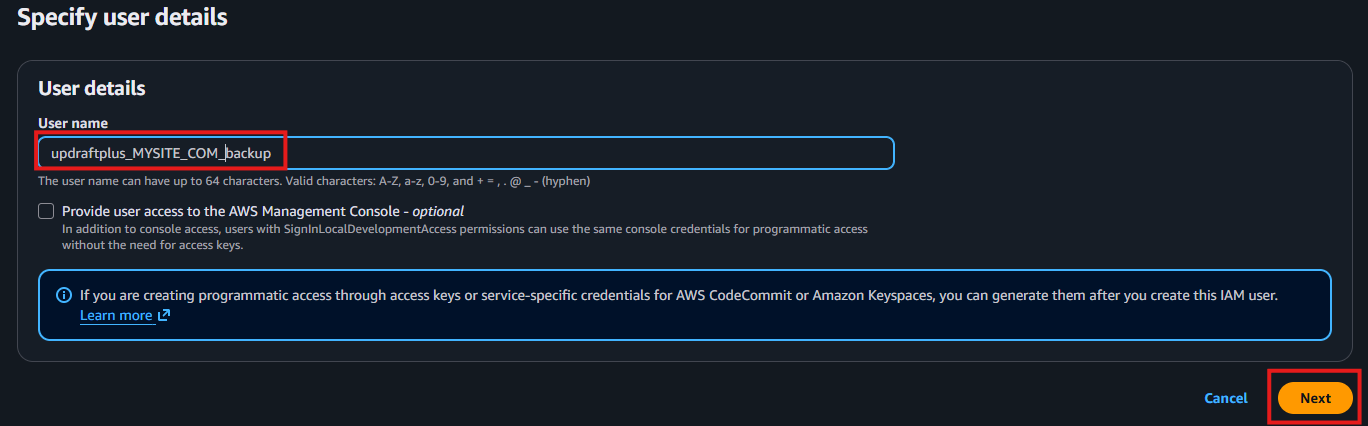
- Enter a name for the user and click the Next button
- Select Attach policies directly, and filter the policies to Custom managed
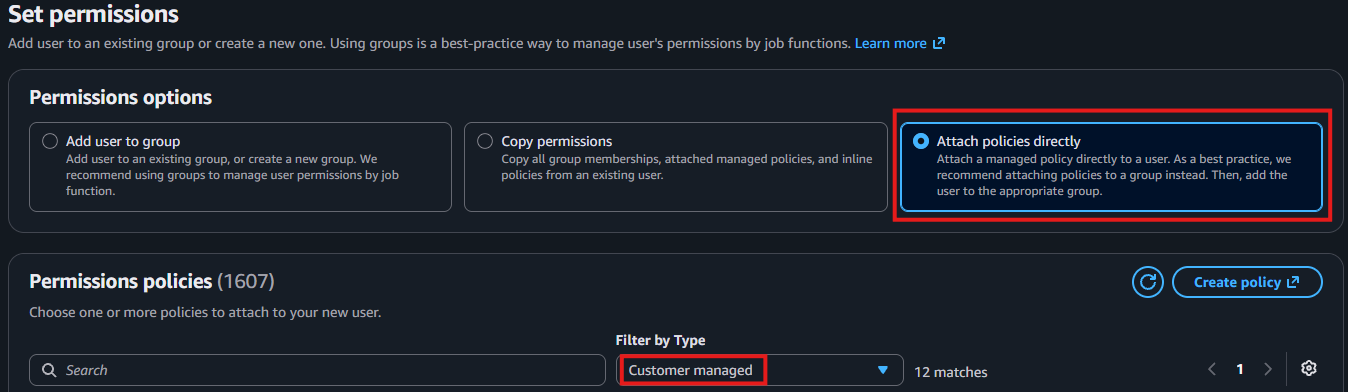
- Select the new S3 policy we have created above

- In the lower right corner click the Next button

- On the Review and create page click the Create user button

Create user credentials
- In the user list click the name of the new user

- Select the Security credentials tab

- In the Access keys section click the Create access key button

- Select the Other option

- In the lower right corner click the Next button

- Enter a description and click the Create access key button
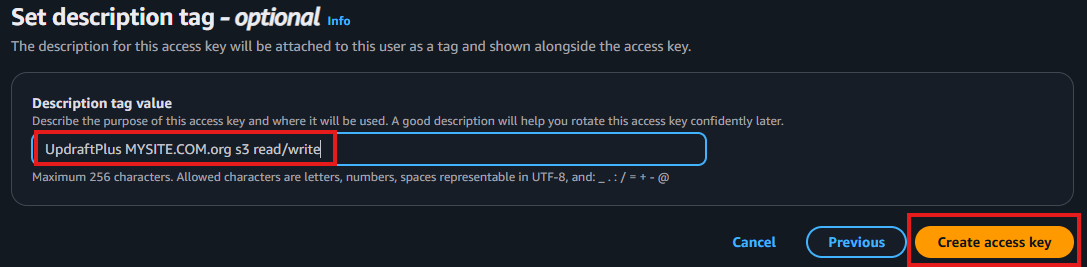
- Click the copy icons to temporarily save the values

- Click the Done button

Install the Updraft Plus plugin
- Log into your WordPress website as administrator
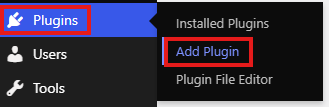
- On the left side hover above the Plugins with your mouse and click Add Plugin
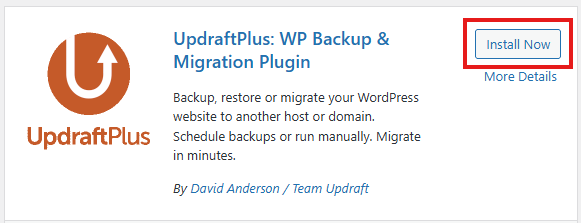
- On the right side enter updraftplus into the search field

- Click the Install Now button of the UpdraftPlus plugin
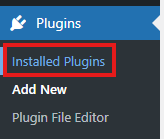
- On the left margin in the Plugins section click Installed Plugins
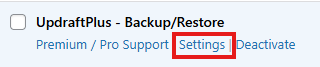
- In the UpdraftPlus section click Settings
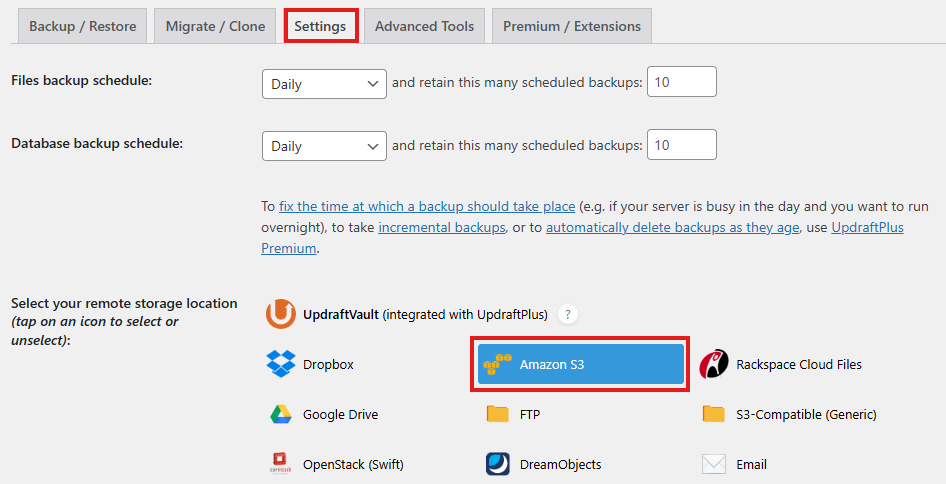
- On the Settings tab select Amazon S3
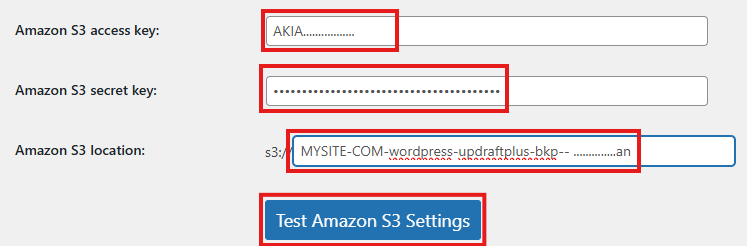
- Enter the Amazon S3 access key, secret key, bucket name, and lick the Test Amazon S3 settings button
- The popup should display a success message. Click the OK button
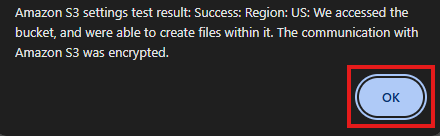
- At the bottom of the page click the Save Changes button