Skip to content
Pinter Computing

Knowledge Base for IT Professionals, Teachers, and Astronauts

Pinter Computing

Knowledge Base for IT Professionals, Teachers, and Astronauts

  • Home
  • Programming
  • DevOps
  • Project Management
  • Software and Hardware
  • Miscellaneous
  • Egyebek
  • About
  • Experience
  • Education
  • Contact
  • Home
  • Programming
  • DevOps
  • Project Management
  • Software and Hardware
  • Miscellaneous
  • Egyebek
  • About
  • Experience
  • Education
  • Contact
Close

Search

Home/DevOps/Keep multiple versions of applications on Macintosh
DevOpsMac OS X

Keep multiple versions of applications on Macintosh

By Laszlo Pinter
December 14, 2016 2 Min Read
0

Most of the DevOps tools are still in beta versions, many times the new version is not compatible with your existing scripts or have an error that stops your scripts working. To be able to keep multiple versions of the applications and easily switch between them, create symbolic links and point to the version you want to execute.

Create version-specific locations

Create a folder for your optional applications.

mkdir /opt

Set you as the owner of the “opt” directory and its children.

YOUR_GROUP should be on:

  • MacOS: wheel
  • Ubuntu: your username 
sudo chown -R YOUR_USER_NAME:YOUR_GROUP /opt

Set the security of the folder.

sudo chmod 755 /opt

We will create a directory structure to place each version of the application into its own folder. This example uses Packer.
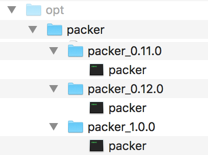
Create a symbolic link to point to the application in the appropriate version folder. These are the examples for Packer, Terraform, and Vagrant. Notice, that the Vagrant application is in the “bin” directory, so the symbolic link has to point there.

If there is an existing symbolic link that points to the latest version of the application, rename it to be able to quickly return to the prior version of the application. This can come handy when we need to destroy instances created with the prior version of Terraform.

cd /opt/terraform
mv terraform terraform_v_0.9.11
cd /opt/packer
mv packer packer_v_1.0.4

Create a new symbolic link that points to the latest version of the application.

# For Packer
cd /opt/packer
ln -s /opt/packer/packer_1.2.0/packer packer

# For Terraform
cd /opt/terraform
ln -s /opt/terraform/terraform_0.10.0/terraform terraform

# For Vagrant
cd /opt/vagrant
ln -s /opt/vagrant/vagrant_1.9.5/bin/vagrant vagrant #The vagrant application is in the bin folder

Add the main application folder to the path in the config file of your terminal

  • for iTerm2 with zterminal: ~/.zshrc
  • for other terminals: ~/.bash_profile
PATH=/opt/packer:$PATH
PATH=/opt/terraform:$PATH
PATH=/opt/vagrant:$PATH

Vagrant

For Vagrant installation see Vagrant


To change the version you want to execute

  • Delete the symbolic link,
    cd /opt/packer
    rm packer
  • Create a new symbolic link pointing to the other version of the application as above.

Tags:

DevOpsMacOSXPackerTerraformVagrant
Author

Laszlo Pinter

Follow Me
Other Articles
Previous

Variable ‘…’: duplicate found. Variable names must be unique.

Next

Delay updates in Windows 10

No Comment! Be the first one.

Leave a Reply Cancel reply

Your email address will not be published. Required fields are marked *

Search

Last Changes

  • DevOps Engineering part 1. (Mac) - Make your Macintosh easier to use June 25, 2026
  • Japan travel tips June 22, 2026
  • How to stop the rain and snow in Cities: Skylines II June 20, 2026
  • Cities: Skylines II Developer Mode June 20, 2026
  • 'CSII_MANAGEDPATH' has incorrect path(s) when building Cities: Skylines II mod June 20, 2026

Tags

.NET .NETcore 3Dprinting ASP.NET Core AutodeskInventor AWS C# Chef cloud DevOps Docker EntityFramework Games Git Go iOS iPad iPhone iPod Java Kubernetes Linux MacOSX MSSQL MVC Node.js Packer PowerShell Python RDS RightScale Ruby security Splunk TeamCity Terraform TestKitchen Tomcat Ubuntu Vagrant VirtualBox VisualStudio Windows WordPress Xcode

Recent Comments

  • Zengei László on MyHeritage családfa exportálása és küldése emailben
  • Raúl Castillo on DynDns update error
  • MICHAEL on Windows Media Player 12 cannot find the album information
  • Nargis on Configure Epson ET-3850 scanning on Windows 11
  • Venczelné Zemen Erika on Delta S2302 termosztát programozása

–

  • Log in
  • Entries feed
  • Comments feed
  • WordPress.org
Copyright 2026 — Pinter Computing. All rights reserved.