Skip to content
Pinter Computing

Knowledge Base for IT Professionals, Teachers, and Astronauts

Pinter Computing

Knowledge Base for IT Professionals, Teachers, and Astronauts

  • Home
  • Programming
  • DevOps
  • Project Management
  • Software and Hardware
  • Miscellaneous
  • Egyebek
  • About
  • Experience
  • Education
  • Contact
  • Home
  • Programming
  • DevOps
  • Project Management
  • Software and Hardware
  • Miscellaneous
  • Egyebek
  • About
  • Experience
  • Education
  • Contact
Close

Search

Home/Knowledge Base/Cities: Skylines game frequently crashes
Knowledge Base

Cities: Skylines game frequently crashes

By Laszlo Pinter
December 27, 2019 3 Min Read
0

The Cities: Skylines game keeps objects in memory even if the object is not used. Even a 16GB system can crash frequently if the memory usage is not managed.

“Oops! The game crashed

The memory usage is high, even when the map is not too complex.

Enable enough Virtual Memory

Make sure Windows has enough Virtual Memory configured. I have set up 4096 MB minimum and maximum Virtual Memory for my 16 GB Toshiba laptop.

Install the Loading Screen mod

This page explains the issue and how to solve the problem: https://steamcommunity.com/app/255710/discussions/0/1488866180604646672/

This is the summary of the steps you can take to stabilize the game on your computer

  • Get the Loading Screen Mod at https://steamcommunity.com/sharedfiles/filedetails/?id=667342976
  • Read the guide to understand the skipping the prefabs at https://steamcommunity.com/workshop/filedetails/discussion/667342976/1741105805762370419/
    • The prefab names are listed at https://thale5.github.io/Prefabs/
  • Download the sample “skip.txt” file from https://thale5.github.io/Prefabs/ and save it at
    C:\Users\YOUR_USER_NAME\AppData\Local\Colossal Order\Cities_Skylines\SkippedPrefabs\skip.txt
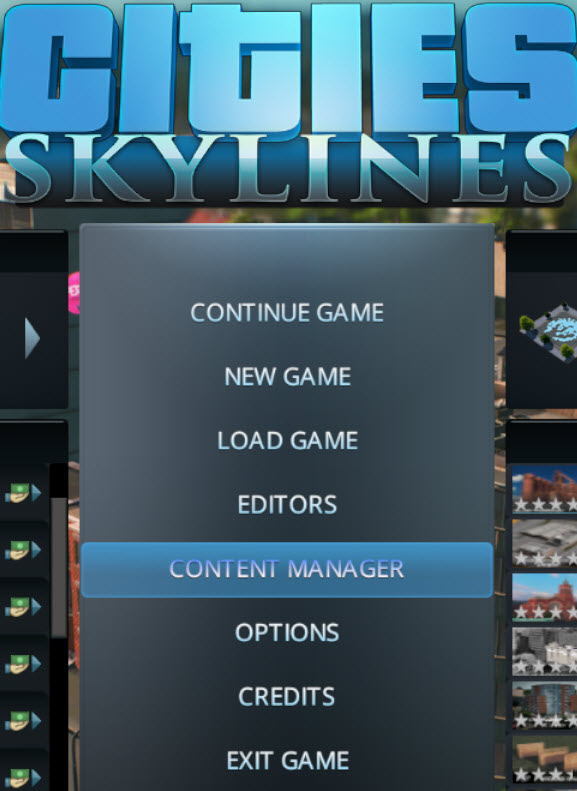
  • Start the Cities: Skylines game and select CONTENT MANAGER
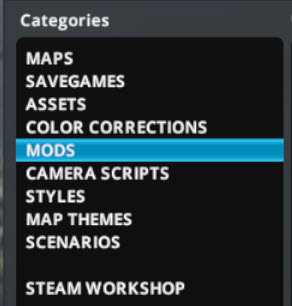
  • On the left side select MODS
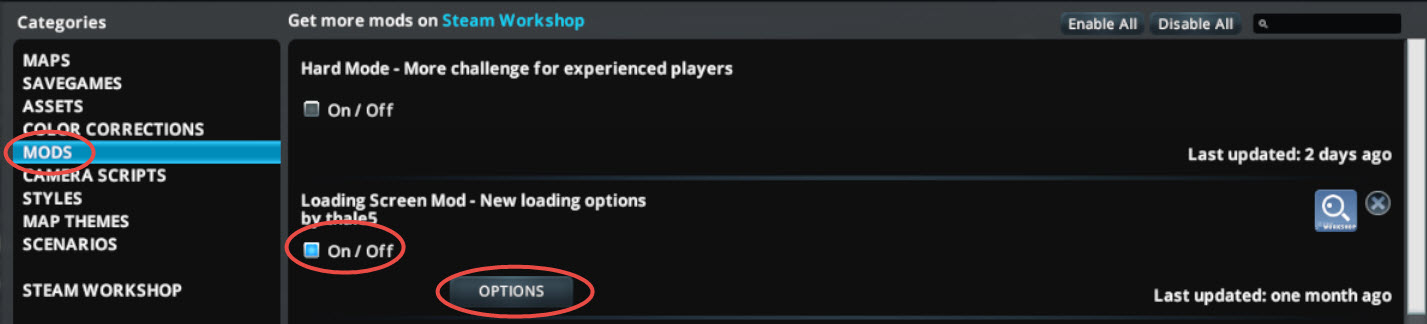
  • Enable the mod. We will be able to set the options when the mod already ran once.
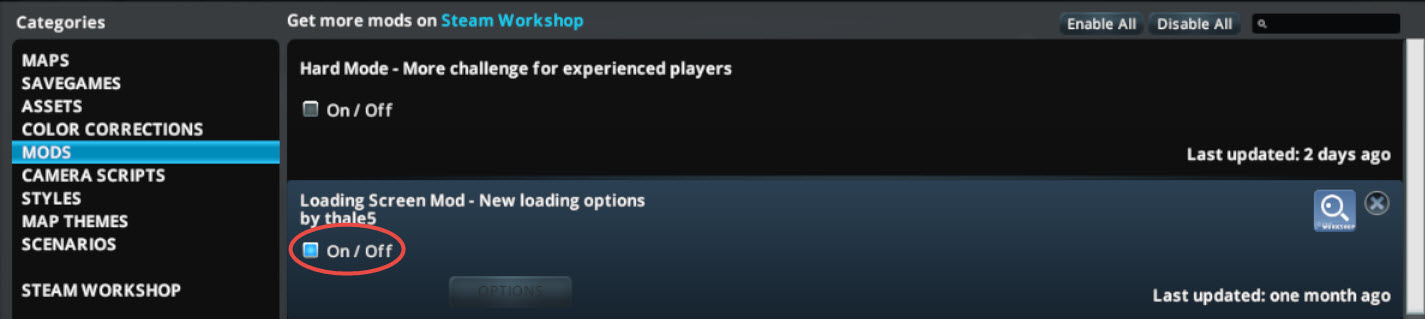
  • Accept the disclaimer
  • Close the MODS page
  • Start the game to be able to set the options later

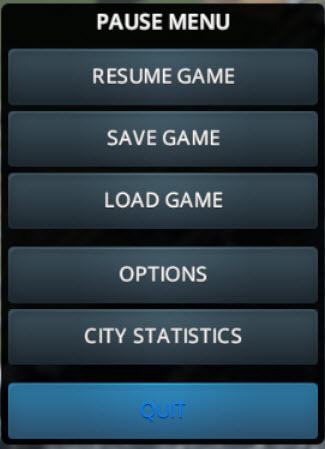
  • Quit the game
  • Exit to the Main Menu
  • Open the MODS page
  • Click the OPTIONS button
  • Select the Skip the prefabs named in this file option
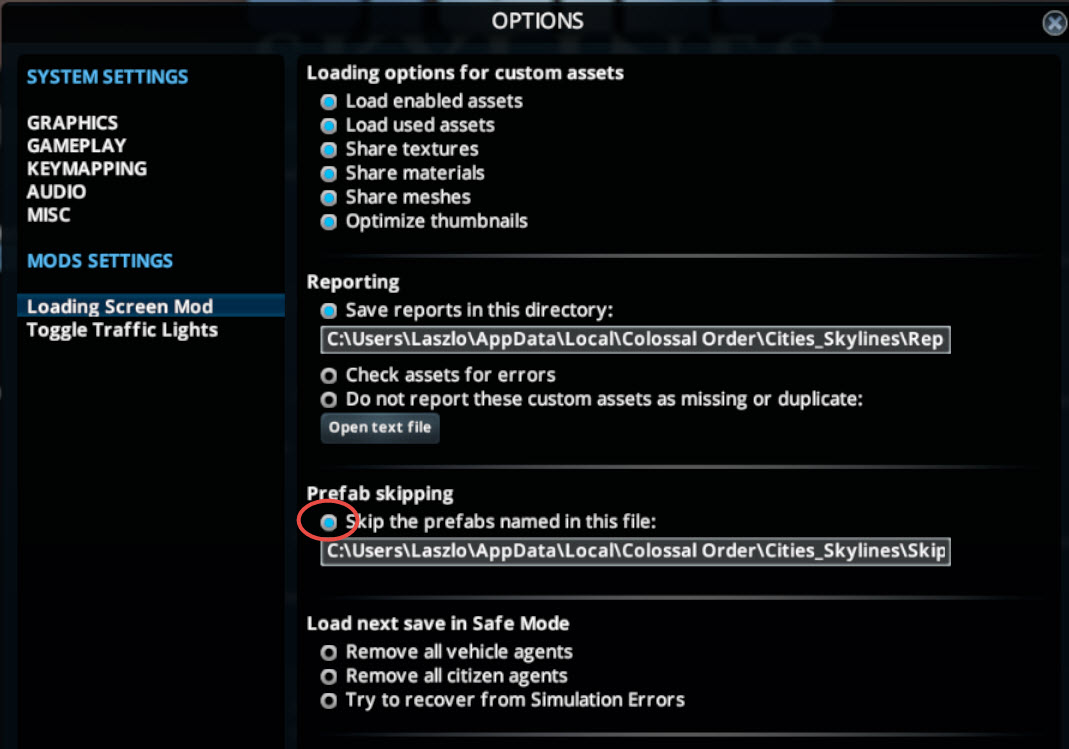
  • When the game starts the Loading Screen mod will display the memory usage
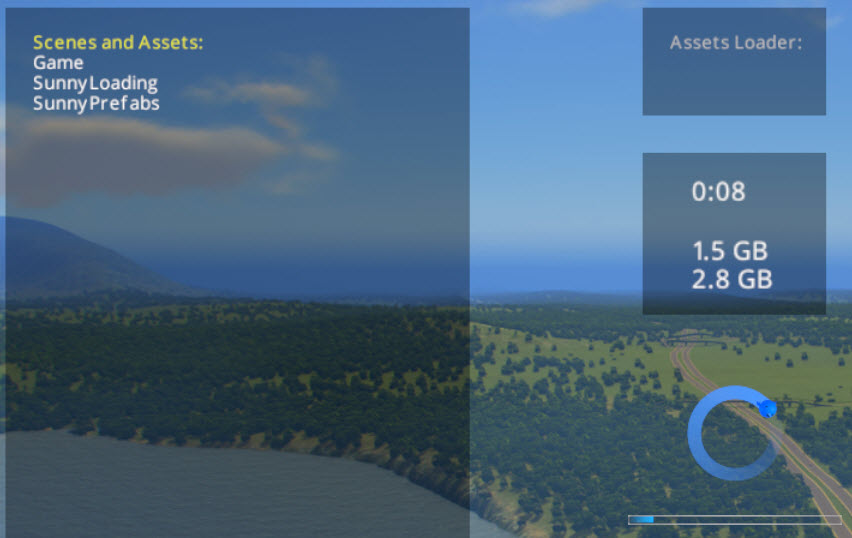
  • After a few minutes, the memory usage will go down to 25% of the prior value or less.

Tags:

Games
Author

Laszlo Pinter

Follow Me
Other Articles
Previous

Get jstack and other Java utilities without installing the Java JDK

Next

Error: Failed to instantiate provider “aws” to obtain schema: Incompatible API version with plugin. Plugin version: 4, Client versions: [5]

No Comment! Be the first one.

Leave a Reply Cancel reply

Your email address will not be published. Required fields are marked *

Search

Last Changes

  • DevOps Engineering part 1. (Mac) - Make your Macintosh easier to use June 25, 2026
  • Japan travel tips June 22, 2026
  • How to stop the rain and snow in Cities: Skylines II June 20, 2026
  • Cities: Skylines II Developer Mode June 20, 2026
  • 'CSII_MANAGEDPATH' has incorrect path(s) when building Cities: Skylines II mod June 20, 2026

Tags

.NET .NETcore 3Dprinting ASP.NET Core AutodeskInventor AWS C# Chef cloud DevOps Docker EntityFramework Games Git Go iOS iPad iPhone iPod Java Kubernetes Linux MacOSX MSSQL MVC Node.js Packer PowerShell Python RDS RightScale Ruby security Splunk TeamCity Terraform TestKitchen Tomcat Ubuntu Vagrant VirtualBox VisualStudio Windows WordPress Xcode

Recent Comments

  • Zengei László on MyHeritage családfa exportálása és küldése emailben
  • Raúl Castillo on DynDns update error
  • MICHAEL on Windows Media Player 12 cannot find the album information
  • Nargis on Configure Epson ET-3850 scanning on Windows 11
  • Venczelné Zemen Erika on Delta S2302 termosztát programozása

–

  • Log in
  • Entries feed
  • Comments feed
  • WordPress.org
Copyright 2026 — Pinter Computing. All rights reserved.