
If you use 2-factor authentication in GitHub, generate a 40 character Personal Access Token that you can use as a password to access GitHub repositories.
Create a Personal Access Token to use it as password in the Git client
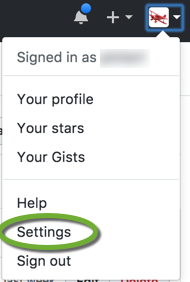
- Log into GitHub and in the pull down at the upper right select Settings,
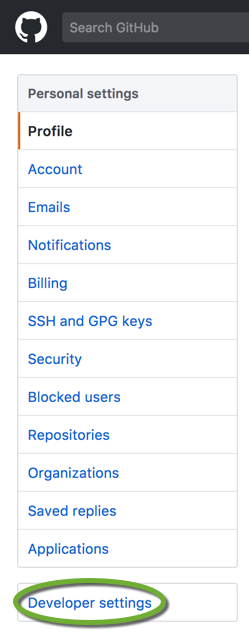
- On the left select Developer Settings,
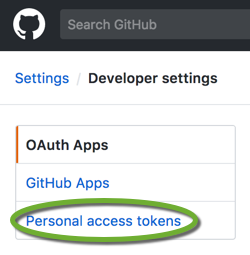
- On the left select Personal access tokens,
- Click the Generate new token button,

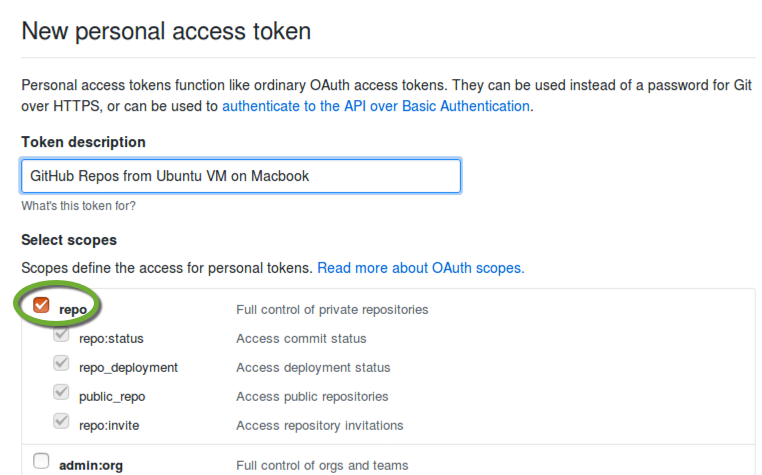
- Enter a description for your token (so you can keep track and revoke them individually later, should you have a security breach),
- Select the repo checkbox,
- Click the Generate token button,
- Copy the token (40 characters long) to the clipboard and use that as your password in the command line.
- If your organization use SSO (Single Sign On) click the Enable SSO button

- This will open your organization’s authentication pages to enable access for your token.
Store or update your username and password in the Git credential helper
In macOS and Linux
Set the credential helper to store your username and password
To store the Git credentials on your hard disk in unencrypted form, use the Git Credential Store
git config credential.helper store
When you have already stored your password in the credential helper of Git and switching to 2-factor authentication, or just want to update your GitHub username or password
In Windows
- In the command line execute the following to instruct the Git client to use the Wincred Windows credential helper to store your username and password
git config --global credential.helper wincred - The next time you will access the GitHub repository to fetch, clone or push changes the Git CLI will pup up a dialog box to ask your username and password.
To update an already stored username or password in the Windows Credential Manager
If you get the error message, refresh the stored Personal Access Token
remote: Invalid username or token. Password authentication is not supported for Git operations.
fatal: Authentication failed for …
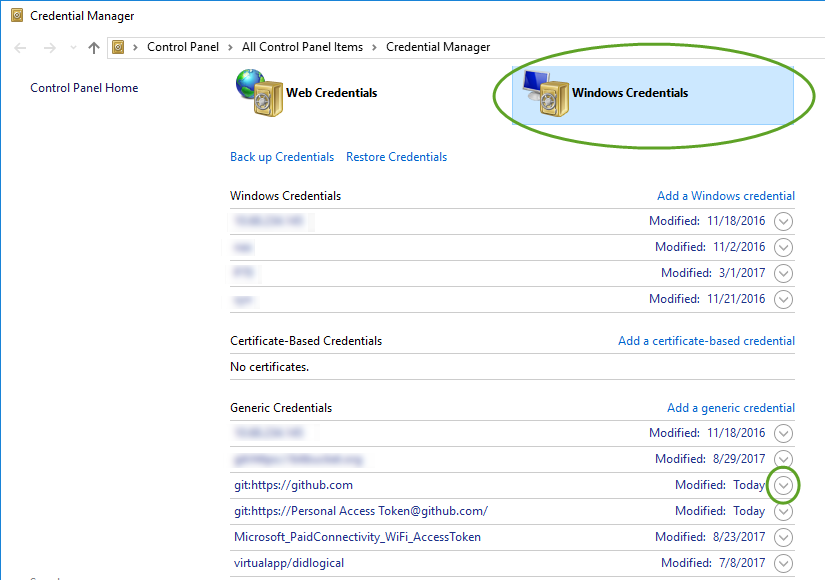
When you access GitHub from your Windows workstation, Windows stores your credentials in the Credential Manager. If you want to enter an updated password, enter your personal access token when you switch to 2-factor authentication or switch between GitHub accounts, delete the GitHub entry from the Credential Manager.
Remove the old credentials
- Open the Windows Credential Manager
- Open a command window
- Execute
control /name Microsoft.CredentialManager
- On the Windows Credentials tab click the down arrow next to github.com
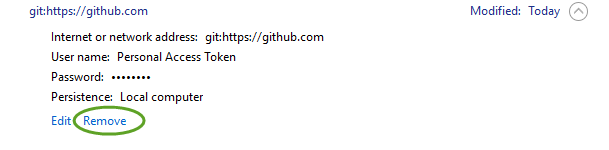
- Click the Remove link
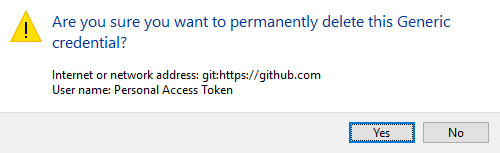
- Click Yes to delete the link.
Access GitHub again
- Execute the git command (push, pull, etc) again.
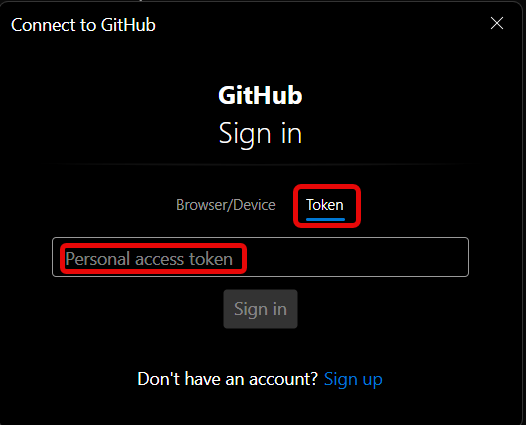
- In the popup select Token, and enter the new GitHub Access Token, and click the Sign in button.
Configuring terminal access with SSO GitHub authentication
If you need to use SSO (Single Sign On) to log into GitHub, you need to authorize your computer to access the account via a terminal. You can also use this method if you need to authorize a Windows virtual machine running on your MacBook. In that case
- Execute these commands in the virtual machine to generate the one-time code
- Use the MacBook’s browser to log into GitHub and paste the one-time code into the GitHub page.
GitHub CLI
- Install the GitHub CLI from https://cli.github.com/
Authorization steps
- Execute this command in the terminal to generate the one-time code:
gh auth loginUse the following options:
Where do you use GitHub? GitHub.com
What is your preferred protocol for Git operations on this account? HTTPS
Authorize Git with your credentials? No
How would like to authenticate GitHub CLI? Login with a web browser
Copy the 6 character one-time code to the clipboard and on any computer that can authenticate in GitHub navigate to https://github.com/login/device and follow the prompts to authorize the device.
- Execute these remaining commands in the terminal to complete the authorization:
gh auth setup-git
git config --global credential.helper