
Time Machine backs up all necessary files to restore your computer in case of a disaster. Hidden directories are backed up, but you need root (sudo) permission to access some of them. The Time Machine restore process cannot restore protected files and directories one-by-one, only when you restore the entire machine backup.

This table shows the locations of some important files and directories on the Time Machine drive:
| Item | Location | Location on the Time Machine drive |
| cron jobs | /var -> private/var/at/tabs | Backups.backupdb/MY_COMPUTER_NAME/MY_BACKUP_DATE/Macintosh HD – Data/private/var/at/tabs |
| Google Chrome bookmarks | /Users/MY_USER_NAME/Library/Application Support/Google/Chrome/Default | /Volumes/Time Machine 1 Passport/Backups.backupdb/MY_COMPUTER_NAME/MY_BACKUP_DATE/Macintosh HD – Data/Users/MY_USER_NAME/Library/Application Support/Google/Chrome/Default |
To view files in hidden directories with access restrictions on the Time Machine
- Connect the Time Machine drive to your computer
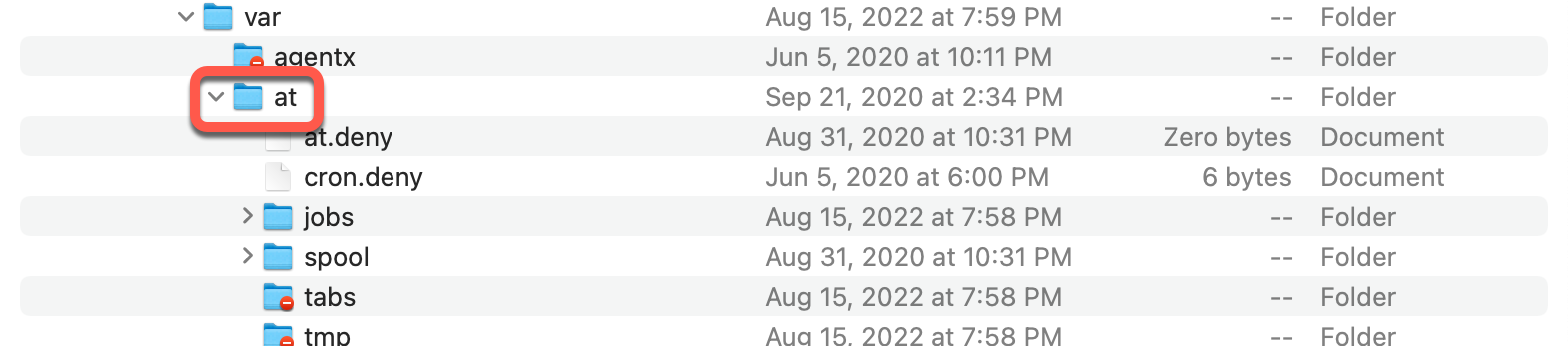
- In Finder navigate to the parent of the protected directory
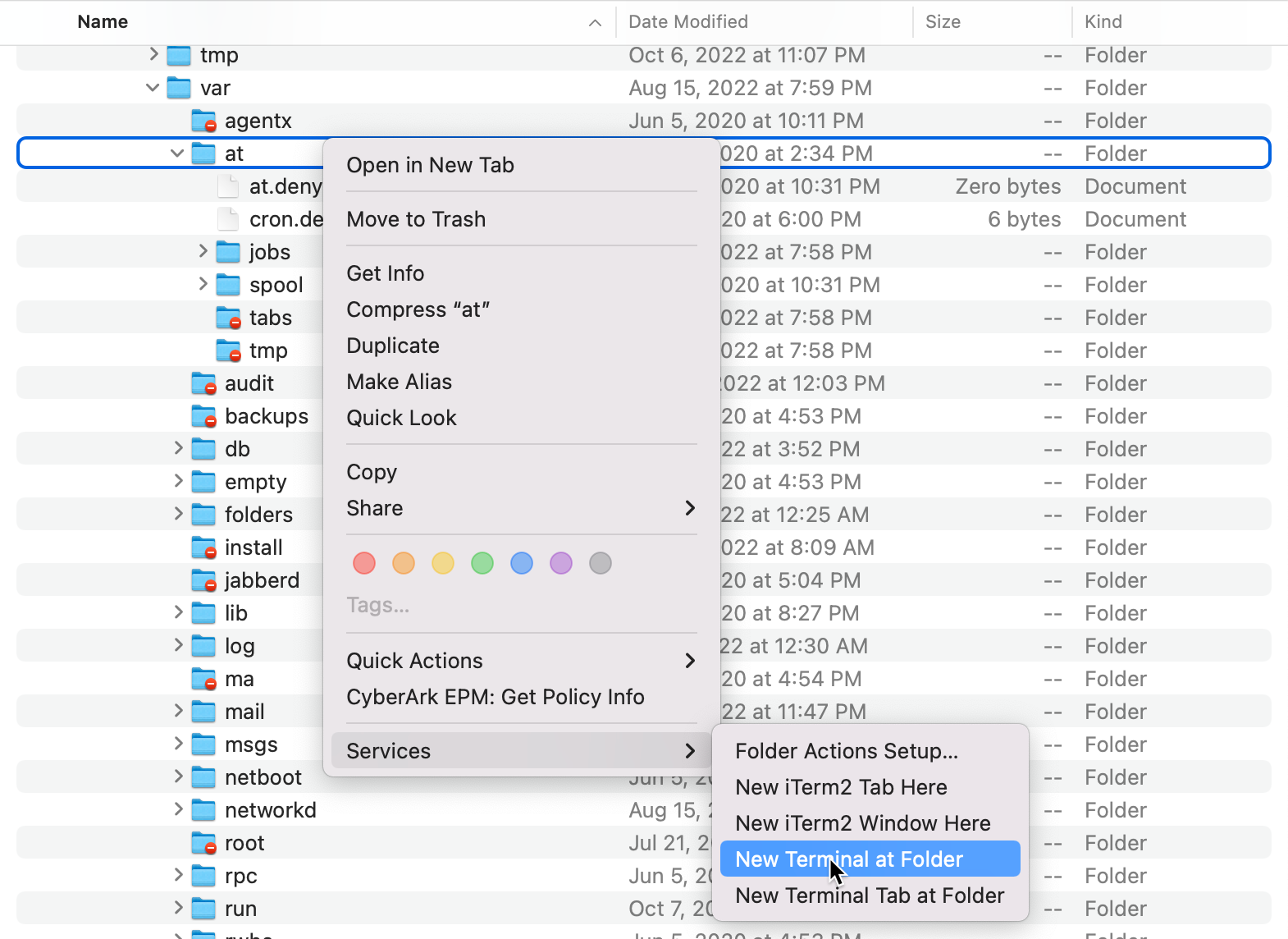
- Right-click the parent directory, and select Services, New Terminal at Folder
- In the terminal execute
pwd
to get the current working directory
- In the terminal execute
sudo -i
and enter your admin password
- Copy the output of the pwd command to the clipboard

- Change the directory by executing the command
cd "/Volumes... "
( enclose the path in double quotes as it contains spaces )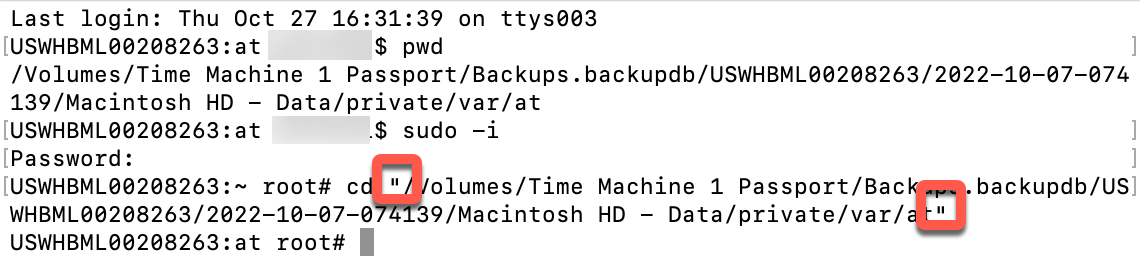
- Change into the protected directory to access the files

To restore files to the computer
When we access protected files on the Time Machine we use the “root” account to access them. If we copy the file to the computer the owner becomes “root” and the applications running under our regular account cannot access them.
To make the files accessible to the regular account we need to change the file permissions after copying them to the computer.
Restore Google Chrome bookmarks from Time Machine backup
- Start Google chrome and save one bookmark to create the Bookmarks file with the correct ownership.
- Start a terminal ( terminal #1 ) and open the time machine backup with “sudo” rights ( see table above ) to get the backup file location
- Start another terminal ( terminal #2 ) and open the folder on the computer with “sudo” rights ( see table above )
- In terminal #2 execute the command to copy and overwrite the Bookmarks file
cp "/Volumes/Time Machine 1 Passport/Backups.backupdb/MY_COMPUTER_NAME/MY_BACKUP_DATE/Macintosh HD - Data/Users/MY_USER_NAME/Library/Application Support/Google/Chrome/Default/Bookmarks".
( Double quotes are needed, as the path contains spaces, and don’t forget the dot at the end of the command ) - Close Google Chrome and start it again to re-read the Bookmarks file.
