
Create an encrypted Chef data bag
There are secrets in most of the Chef cookbooks that we want to protect. We don’t want to give out user names, passwords and AWS keys. In Chef the best place to hide these secrets is the Encrypted Data Bag.
A Data Bag is a JSON file that we can encrypt, so we can store it in version control with the rest of the cookbook.
To make continuous integration and delivery (CI/CD) easier, store the Encrypted Data Bags in the cookbook folder structure and commit them together with the rest of the cookbook into version control (Git)
To make sure the unencrypted secret is not committed into version control, add the following line to the .gitignore file
# Ignore the unencrypted Data Bags
data_bags_unencrypted/
The structure of Chef folder should look like this. Store the unencrypted Data Bags with the original values in the data_bags_unencrypted folder
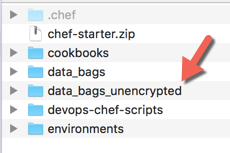
Create a folder for the unencrypted Data Bag and create a file for the Data Bag Item. The name of the file and the value of the id element should be the same.
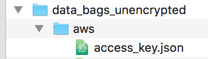
Enter the Data Bag Item values and save the file.
{
 "id": "access_key",
 "AccessKey": "XXXXX",
 "SecretKey": "YYYYY"
}
Automate the data bag encryption
Create the folder structure
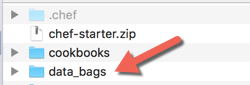
- Create a folder for data bag related files on the same level as the cookbooks folder. Name it data_bags
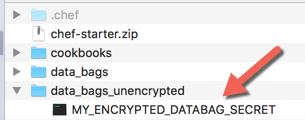
- Get the data bag encryption secret file from your Chef server administrator and place it in the data_bags_unencrypted folder.
- Create a folder for Chef related scripts on the same level as the cookbooks folder. Name it devops-chef-scripts
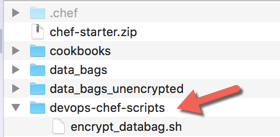
Create the automation script
Create the following script and name it encrypt_databag.sh. This script
- Encrypts the Data Bag,
- Uploads the encrypted data bag to the Chef server,
- Saves the encrypted data bag in the data_bags folder on your workstation.
Replace >>>MY_ENCRYPTED_DATABAG_SECRET<<< with the name of the encrypted data bag secret file.
#!/bin/bash
if [ -z $1 ] || [ -z $2 ]
then
	echo "Please supply the arguments: DATABAG_NAME ITEM_NAME"
	echo "../devops-chef-scripts/encrypt_databag.sh [DATA_BAG_NAME/NAME OF THE FOLDER] [ITEM_NAME/ID]"
else

  echo -- knife data bag create $1
  knife data bag create $1

  # Encrypt the databag and upload it to the Chef server
  echo -- knife data bag from file $1 $1/$2.json --secret-file ../data_bags_unencrypted/>>>MY_ENCRYPTED_DATABAG_SECRET<<<
  knife data bag from file $1 $1/$2.json --secret-file ../data_bags_unencrypted/>>>MY_ENCRYPTED_DATABAG_SECRET<<<

  # Create a directory for the encrypted databag on the workstation
  echo -- mkdir -p ../data_bags/$1
  mkdir -p ../data_bags/$1

  # Download the encrypted data bag
  echo -- knife data bag show $1 $2 -F json 'to' ../data_bags/$1/$2.json
  knife data bag show $1 $2 -F json > ../data_bags/$1/$2.json

  echo "Encrypted data bag has been created at ../data_bags/"$1"/"$2".json"

fi

echo -n "Press a key to exit"	#'-n' means do not add \n to end of string
read              		# No arg means dump next line of input
Add execution right to the file
chmod +x ./encrypt_databag.sh
Encrypt the data bag
Open a Bash window in the data_bags_unencrypted folder
Execute the following command, where
DATA_BAG_NAME is the name of the data bag folder
ITEM_NAME is the value of the id element and the item file name without the ‘.json’ extension,
../devops-chef-scripts/encrypt_databag.sh DATA_BAG_NAME ITEM_NAMEThe script will create a folder for the Data Bag in the “data_bags” folder and save the encrypted Data Bag file in it.
The following warning is normal. We did not want to unencrypt the data bag, just download the encrypted version.
WARNING: Encrypted data bag detected, but no secret provided for decoding. Displaying encrypted data.
Troubleshooting
If you get the error message
ERROR: The object you are looking for could not be found
Response: Cannot load data bag item … for data bag …
make sure you set the name of the data bag item file without the .json extension and the value of the id element the same.
