Skip to content
Pinter Computing

Knowledge Base for IT Professionals, Teachers, and Astronauts

Pinter Computing

Knowledge Base for IT Professionals, Teachers, and Astronauts

  • Home
  • Programming
  • DevOps
  • Project Management
  • Software and Hardware
  • Miscellaneous
  • Egyebek
  • About
  • Experience
  • Education
  • Contact
  • Home
  • Programming
  • DevOps
  • Project Management
  • Software and Hardware
  • Miscellaneous
  • Egyebek
  • About
  • Experience
  • Education
  • Contact
Close

Search

Home/Software Development/Development tools/Microsoft Visual Studio/Multiple setup projects in a Microsoft Visual Studio solution
Microsoft Visual Studio

Multiple setup projects in a Microsoft Visual Studio solution

By Laszlo Pinter
March 13, 2013 2 Min Read
0

Sometimes it makes sense the create multiple setup projects in a Microsoft Visual Studio solution if you use the same projects, but you want to create separate MSI files for slightly different functionality. An example would be the processing of audio and graphics files. You can use the same middle tier and backend projects for both processes, but deploy two versions of the application to be able to set up two separate scheduled tasks. This way you can stop them separately and set up different schedules for them.
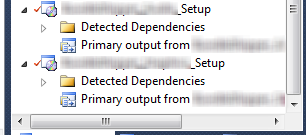
 

Visual Studio Multiple Setup Projects


The two setup projects can coexist, but by default they place the output MSI files to the same sub folder of the setup project: “Release” or “Debug” depending on the configuration. When you start the build of the setup project the compiler deletes all files from the target folder, so if you are expecting two MSI files after the two builds you will be surprised. You will only find the latest build result. The easiest way to handle this is to add an extra folder level in the output file name field of  the setup project properties for the Debug and Release configuration.
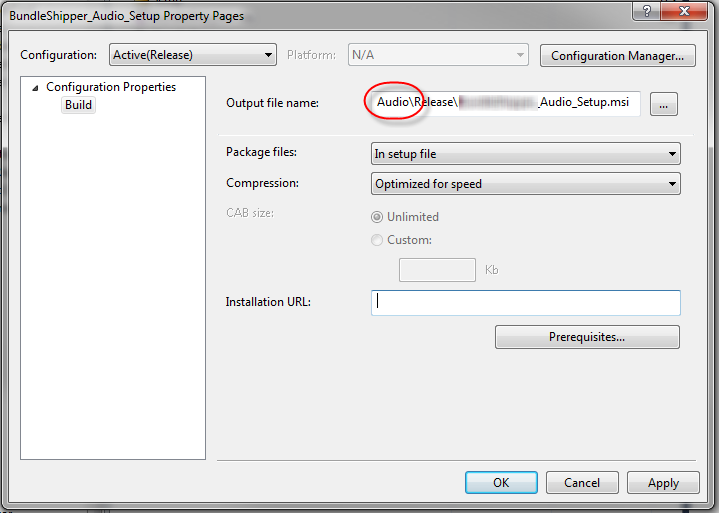
 

Visual Studio Multiple Setup Projects Output File Name


Send the audio processing MSI to Audio\Debug and Audio\Release, and the graphics processing MSI to Graphics\Debug and Graphics\Release.

Tags:

VisualStudio
Author

Laszlo Pinter

Follow Me
Other Articles
Previous

Yellow exclamation point next to a project reference in Microsoft Visual Studio 2012 after conversion to a newer version of the IDE

Next

Microsoft Visual Studio solution folder structure for easy conversion to the new version of the IDE

No Comment! Be the first one.

Leave a Reply Cancel reply

Your email address will not be published. Required fields are marked *

Search

Last Changes

  • DevOps Engineering part 1. (Mac) - Make your Macintosh easier to use June 25, 2026
  • Japan travel tips June 22, 2026
  • How to stop the rain and snow in Cities: Skylines II June 20, 2026
  • Cities: Skylines II Developer Mode June 20, 2026
  • 'CSII_MANAGEDPATH' has incorrect path(s) when building Cities: Skylines II mod June 20, 2026

Tags

.NET .NETcore 3Dprinting ASP.NET Core AutodeskInventor AWS C# Chef cloud DevOps Docker EntityFramework Games Git Go iOS iPad iPhone iPod Java Kubernetes Linux MacOSX MSSQL MVC Node.js Packer PowerShell Python RDS RightScale Ruby security Splunk TeamCity Terraform TestKitchen Tomcat Ubuntu Vagrant VirtualBox VisualStudio Windows WordPress Xcode

Recent Comments

  • Zengei László on MyHeritage családfa exportálása és küldése emailben
  • Raúl Castillo on DynDns update error
  • MICHAEL on Windows Media Player 12 cannot find the album information
  • Nargis on Configure Epson ET-3850 scanning on Windows 11
  • Venczelné Zemen Erika on Delta S2302 termosztát programozása

–

  • Log in
  • Entries feed
  • Comments feed
  • WordPress.org
Copyright 2026 — Pinter Computing. All rights reserved.