Skip to content
Pinter Computing

Knowledge Base for IT Professionals, Teachers, and Astronauts

Pinter Computing

Knowledge Base for IT Professionals, Teachers, and Astronauts

  • Home
  • Programming
  • DevOps
  • Project Management
  • Software and Hardware
  • Miscellaneous
  • Egyebek
  • About
  • Experience
  • Education
  • Contact
  • Home
  • Programming
  • DevOps
  • Project Management
  • Software and Hardware
  • Miscellaneous
  • Egyebek
  • About
  • Experience
  • Education
  • Contact
Close

Search

Home/Knowledge Base/Debugging Go programs in Atom
Knowledge Base

Debugging Go programs in Atom

By Laszlo Pinter
January 12, 2019 2 Min Read
0

To be able to debug Go programs in Atom, make sure the Go IDE is installed. See Install the Go IDE at Install and set up Go

To start debugging select the Debugger tab in the upper right corner of Atom

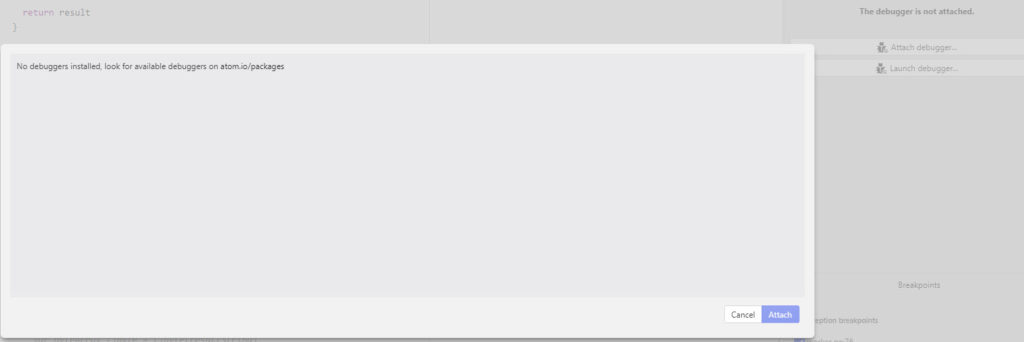
If you get the error message: The debugger is not attached, and when you click Attach debugger you get the error message: No debuggers installed, look for available debuggers on atom.io/packages
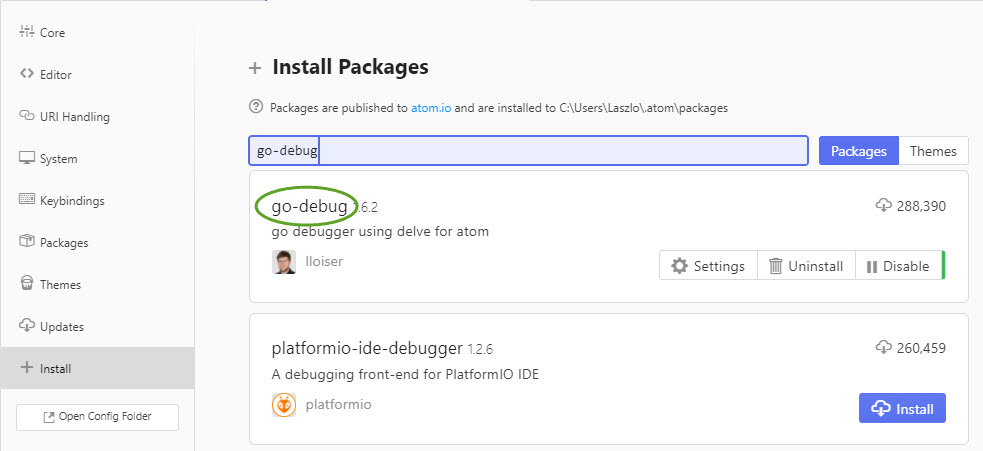
Check if the go-debug Atom package is installed

  • Open the Settings page from the File menu
  • Select Install on the left side
  • Search for go-debug
  • If the package is not installed, click the Install button
If you still get the same error message, download the go-delve package.

Visit https://github.com/derekparker/delve/tree/master/Documentation/installation for more info.

  • In the terminal window execute
    go get -u github.com/go-delve/delve/cmd/dlv
  • Restart Atom for the change to take effect.

 To debug your Go application

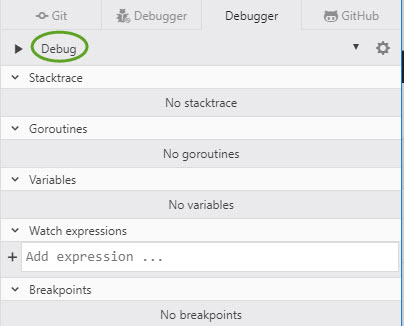
  • Click the Debugger tab in the upper right corner, and select the Debug config
  • To set a breakpoint, click the line in the program and press the F9 key. A red circle appears on the margin. 
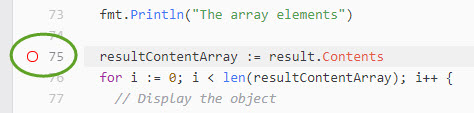
  • The breakpoint appears on the right side of the screen too
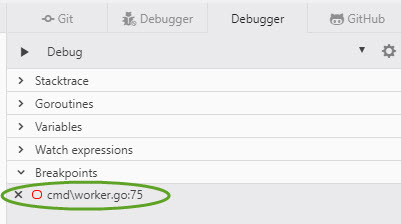
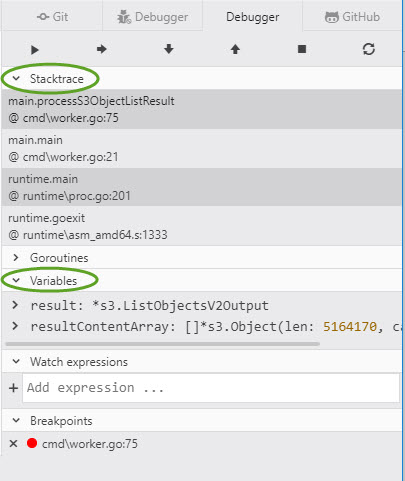
  • Press F5 to run the application in the debugger
  • When the breakpoint is hit the toolbar on the right side shows the Stacktrace and the Variables. Click the arrow to open the section.
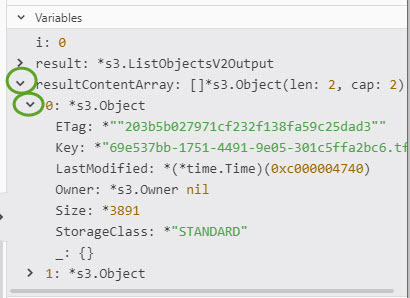
  • Click the arrow next to the variable name to show more details
Tags:

Go
Author

Laszlo Pinter

Follow Me
Other Articles
Previous

Using Go packages

Next

List the Active Directory groups the user is a member of

No Comment! Be the first one.

Leave a Reply Cancel reply

Your email address will not be published. Required fields are marked *

Search

Last Changes

  • Install Git on Windows October 16, 2026
  • How to create a bootable USB drive to install Windows 11 October 11, 2026
  • Nautilus U618 exercise bike magnetic brake adjustment October 11, 2026
  • Health October 11, 2026
  • Limit the battery charge level on MSI laptops October 7, 2026

Tags

.NET .NETcore 3Dprinting ASP.NET Core AutodeskInventor AWS C# Chef cloud DevOps Docker EntityFramework Git Go iOS iPad iPhone iPod Java Kubernetes Linux MacOSX MSSQL MVC MySql Node.js Packer PowerShell Python RDS RightScale Ruby security Splunk TeamCity Terraform TestKitchen Tomcat Ubuntu Vagrant VirtualBox VisualStudio Windows WordPress Xcode

Recent Comments

  • Laszlo Pinter on Turn off the built in touchpad when a mouse is attached
  • Kenneth Bush on Turn off the built in touchpad when a mouse is attached
  • Zengei László on MyHeritage családfa exportálása és küldése emailben
  • Raúl Castillo on DynDns update error
  • MICHAEL on Windows Media Player 12 cannot find the album information

–

  • Log in
  • Entries feed
  • Comments feed
  • WordPress.org
Copyright 2026 — Pinter Computing. All rights reserved.