
Large organizations need to control the incoming traffic to the Kubernetes cluster. The most secure way is to use an ingress controller and create an ingress to channel all incoming traffic to the cluster.
In Learn Kubernetes part 1 – Web application in a Kubernetes cluster we have created a simple web application pod and exposed it to the outside world with a service using a load balancer. We will use the files we have created in that exercise with one change. The deployment is the same:
app1-frontend-deployment.yaml
apiVersion: apps/v1
kind: Deployment
metadata:
  name: app1-frontend-deployment
spec:
  replicas: 3
  selector:
    matchLabels:
      app: app1-frontend-template-label
  template:
    metadata:
      labels:
        app: app1-frontend-template-label
    spec:
      containers:
        - name: app1-frontend-container-label
          image: nginx:1.7.9
          ports:
          - containerPort: 80
In this exercise we will expose the service via an NGINX ingress controller. Delete type: LoadBalancer in the app1-frontend-service.yaml file, so Kubernetes will use type: ClusterIP, the default value.
app1-frontend-service.yaml
apiVersion: v1
kind: Service
metadata:
  name: app1-frontend-service
spec:
  selector:
    app: app1-frontend-template-label
  ports:
    - protocol: TCP
      port: 8080
      targetPort: 80
Create an ingress controller
In this example we will use the kubernetes/ingress-nginx ingress controller maintained by the Kubernetes community. See kubernetes/ingress-nginx NGINX Ingress Controller Installation Guide to configure the NGINX Ingress Controller in your environment.
To start the kubernetes/ingress-nginx ingress controller in any operating system, execute this command to create the ‘nginx-ingress-controller’ deployment with containers
- k8s_nginx-ingress-controller_nginx-ingress-controller
- k8s_POD_nginx-ingress-controller
kubectl apply -f https://raw.githubusercontent.com/kubernetes/ingress-nginx/master/deploy/static/mandatory.yamlBased on the operating system, also execute this to create the ‘ingress-nginx’ service
On Macintosh
kubectl apply -f https://raw.githubusercontent.com/kubernetes/ingress-nginx/master/deploy/static/provider/cloud-generic.yamlVerify the ingress controller installation to make sure it has successfully started
kubectl get pods --all-namespaces -l app.kubernetes.io/name=ingress-nginx --watchNAMESPACE NAME READY STATUS RESTARTS AGE ingress-nginx nginx-ingress-controller-86449c74bb-rlx6h 1/1 Running 0 2d4h
Script the ingress
Connect the ingress to the service
Set the name of the service in the spec: … backend: serviceName:
ingress_nginx.yaml
apiVersion: networking.k8s.io/v1beta1
kind: Ingress
metadata:
  name: ingress
spec:
  rules:
  - http:
      paths:
      - path: /
        backend:
          serviceName: app1-frontend-service
          servicePort: 80
Create the resources
To launch the application and configure the resources to expose it outside of the Kubernetes cluster, open a terminal in the directory where you saved the files and execute
kubectl apply -f .Verify the ingress
List the ingresses
kubectl get ingressNAME HOSTS ADDRESS PORTS AGE ingress * localhost 80 59s
To verify the ingress execute
kubectl describe ingress MY_INGRESS_NAMETroubleshooting Kubernetes Ingress-Nginx
See Troubleshooting Kubernetes Ingress-Nginx
See Kubernetes Ingress Controllers for more info.
Accessing the application
To access the application through the ingress, open a web browser and access the application via the ADDRESS and PORTS values: http://localhost:80
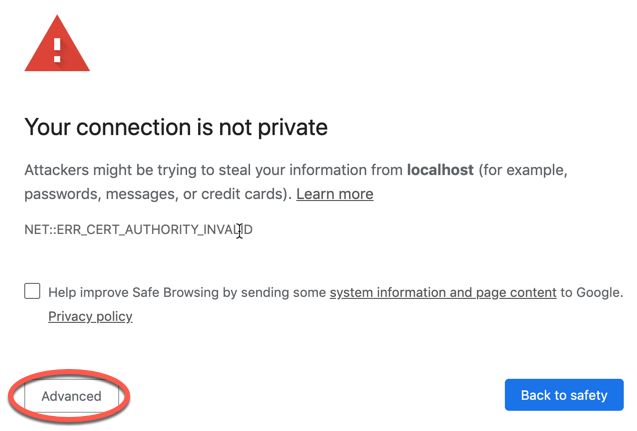
The browser will display a warning, click the Advanced button
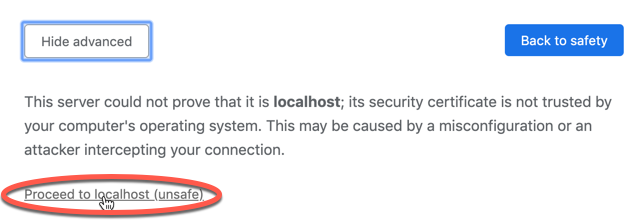
Click the Proceed to localhost (unsafe) link
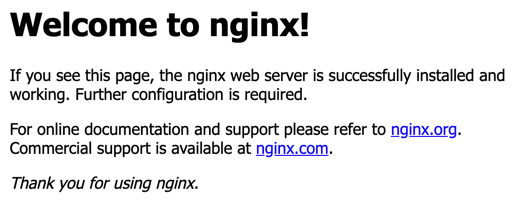
You should see the NGINX default page
Delete the resources
If you want to delete these resources from the Kubernetes cluster, execute
kubectl delete -f .Delete the ingress controller service
kubectl delete service ingress-nginx -n ingress-nginxDelete the deployment
kubectl delete deployment nginx-ingress-controller -n ingress-nginxDelete the ingress-nginx service
kubectl delete -f https://raw.githubusercontent.com/kubernetes/ingress-nginx/master/deploy/static/provider/cloud-generic.yamlDelete the ‘nginx-ingress-controller’ deployment
kubectl delete -f https://raw.githubusercontent.com/kubernetes/ingress-nginx/master/deploy/static/mandatory.yamlCheck if all ingress pods are deleted
kubectl get pods --all-namespaces -l app.kubernetes.io/name=ingress-nginx --watch