
Use the terminal to interact with the Azure Cloud
Installation
Latest instructions at it from bit.ly/AzureCLI
At the time of writing to install the CLI on Windows, execute the command in PowerShell
winget install --exact --id Microsoft.AzureCLIRestart PowerShell to refresh the updated “path” value and found the newly installed tool: az
Extensions
Azure DevOps Extension – Adds DevOps specific functionality. To install execute in the terminal
az extension add --name azure-devopsConfiguration
Enable tab completion
To autocomplete command names when tou press the Tab key, update or create the PowerShell Profile. In the terminal execute
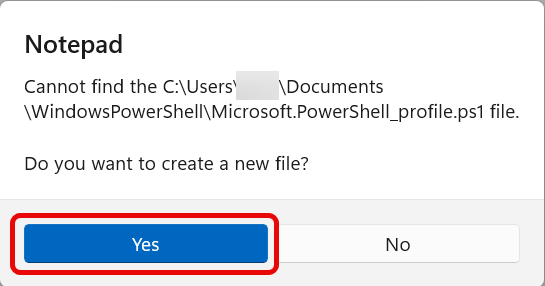
notepad $PROFILEIf the file does not exist, Notepad will ask you to create it. When the popup is displayed, click Yes.
Save the following in the file
Register-ArgumentCompleter -Native -CommandName az -ScriptBlock {
    param($commandName, $wordToComplete, $cursorPosition)
    $completion_file = New-TemporaryFile
    $env:ARGCOMPLETE_USE_TEMPFILES = 1
    $env:_ARGCOMPLETE_STDOUT_FILENAME = $completion_file
    $env:COMP_LINE = $wordToComplete
    $env:COMP_POINT = $cursorPosition
    $env:_ARGCOMPLETE = 1
    $env:_ARGCOMPLETE_SUPPRESS_SPACE = 0
    $env:_ARGCOMPLETE_IFS = "`n"
    $env:_ARGCOMPLETE_SHELL = 'powershell'
    az 2>&1 | Out-Null
    Get-Content $completion_file | Sort-Object | ForEach-Object {
        [System.Management.Automation.CompletionResult]::new($_, $_, "ParameterValue", $_)
    }
    Remove-Item $completion_file, Env:\_ARGCOMPLETE_STDOUT_FILENAME, Env:\ARGCOMPLETE_USE_TEMPFILES, Env:\COMP_LINE, Env:\COMP_POINT, Env:\_ARGCOMPLETE, Env:\_ARGCOMPLETE_SUPPRESS_SPACE, Env:\_ARGCOMPLETE_IFS, Env:\_ARGCOMPLETE_SHELL
}
Set-PSReadlineKeyHandler -Key Tab -Function MenuComplete
Set the default organization
When the default organization is set, we don’t have to include it in every command. In the terminal execute
az devops configure --defaults organization=https://dev.azure.com/MY_ORGANIZATIONLog in into Azure DevOps
To log into Azure DevOps in PowerShell execute
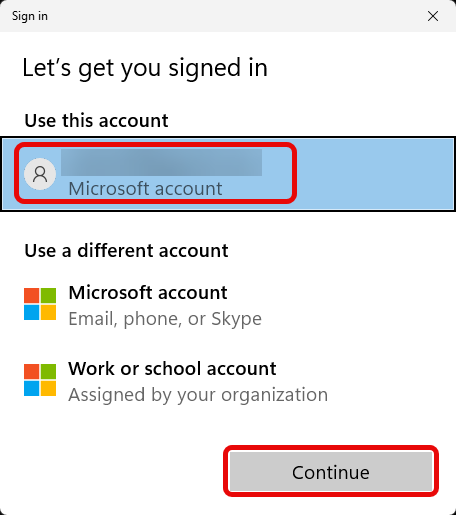
az loginSelect your user account and click Continue
Troubleshooting
If you get the error message
Retrieving tenants and subscriptions for the selection…
Authentication failed against tenant …
This tenant has been blocked due to inactivity.
The tenant your Entra ID (user ID) is associated with was on idle for more than 20 days, or you have never signed up for the free Azure service. If you don’t have a paid subscription, to create a new Tenant, first sign up for a free Azure account. See Configure your Microsoft Azure environment and try to log in again.
