To deploy an application to Azure Container Apps
- Log into the Azure Portal at http://portal.azure.com
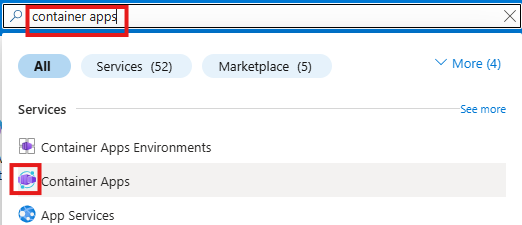
- In the top search bar search for container apps and select Container Apps in the list
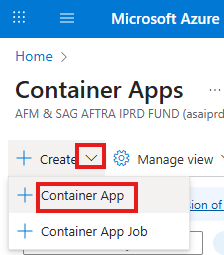
- Click the arrow next to Create and select Container App
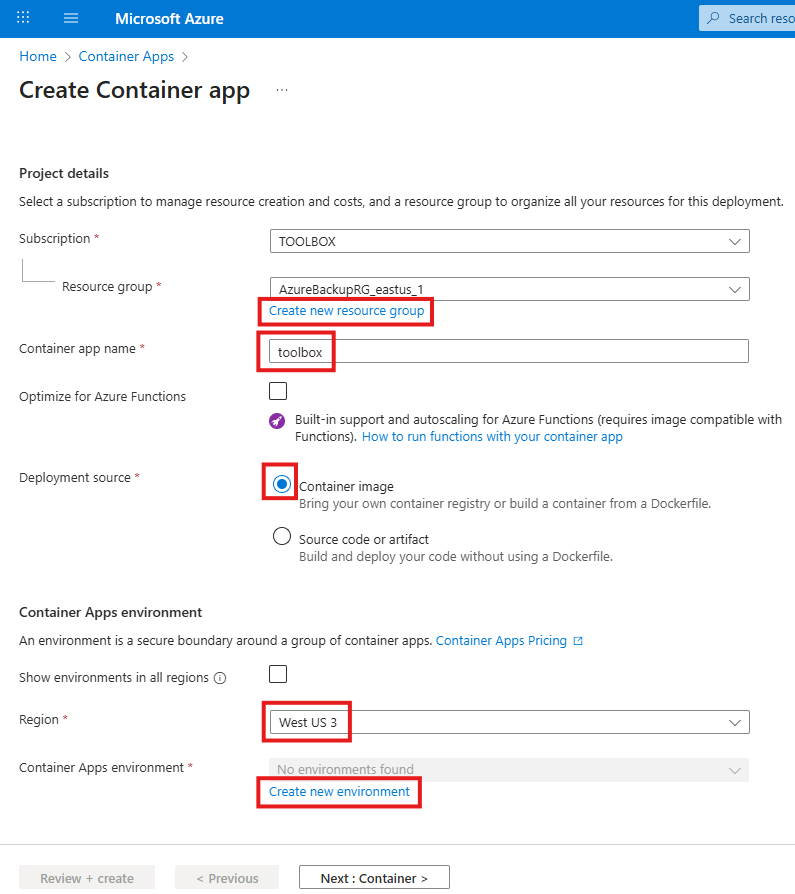
- Create a new Resource Group if needed, enter the app name (all lower case characters), select the Region. Select the environment, or click the Create new environment link. The West US 3 is the newest region in the west, located in Phoenix, Arizona, and provides Availability Zone support. Although West US is located in California, but does not provide availability zone support. Availability zone support offers very important redundancy within the same region in case of network and power outage, and natural disasters. The data transfer between availability zones within the same region is free, and many services can utilize the redundancy.
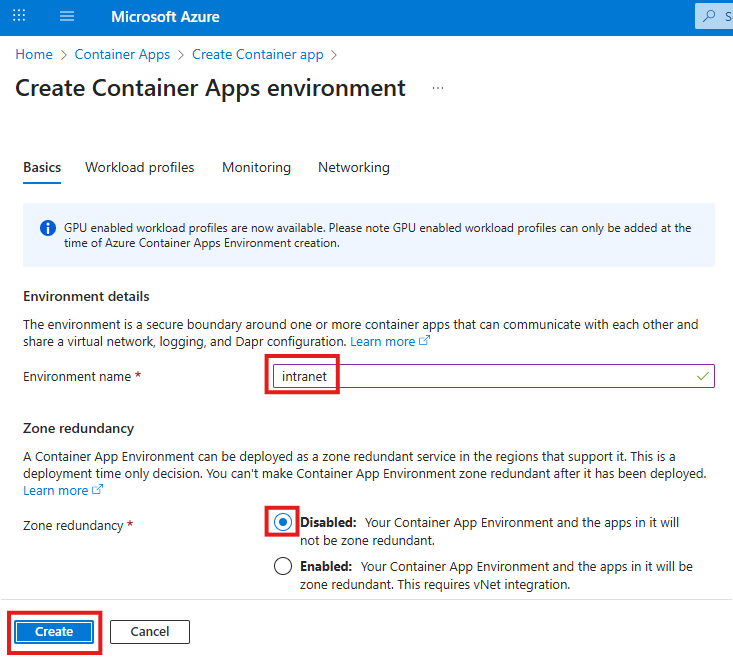
- Enter the environment name, and select the zone redundancy, and click the Create button. For non mission critical apps the zone redundancy is usually not necessary, as it doubles the infrastructure cost.
- Click the Next: Container button
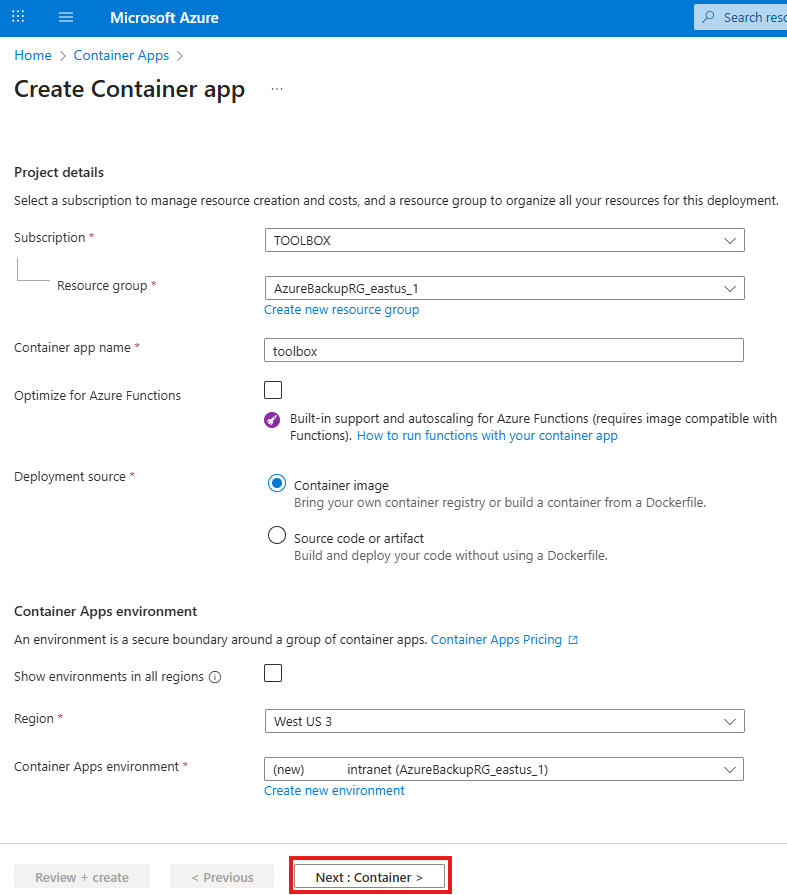
- Container
- If there is no available container image to deploy, select Use quickstart image. This will deploy a temporary Hello World web application.
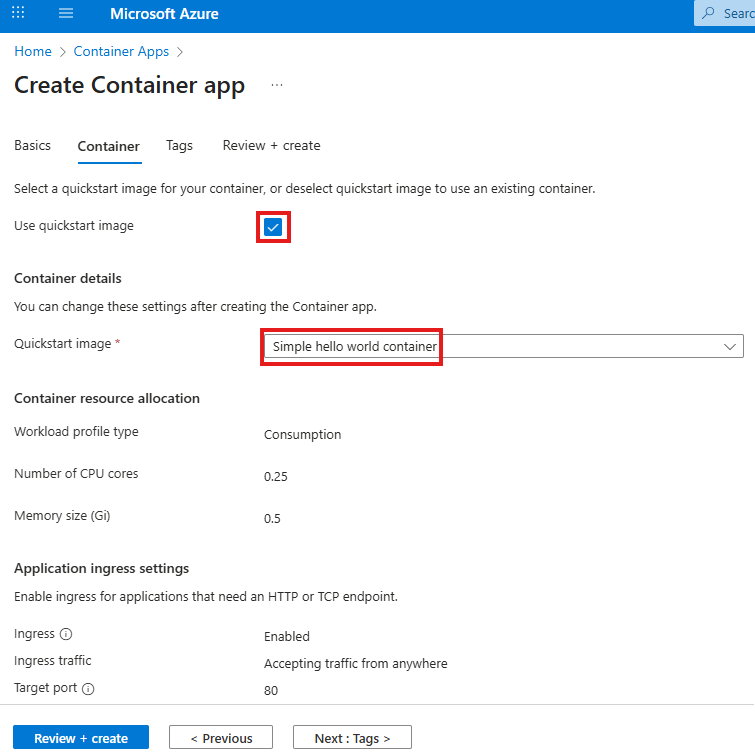
- If you already have a container image to deploy, select the image location and resource requirements. Click the Next: Ingress button
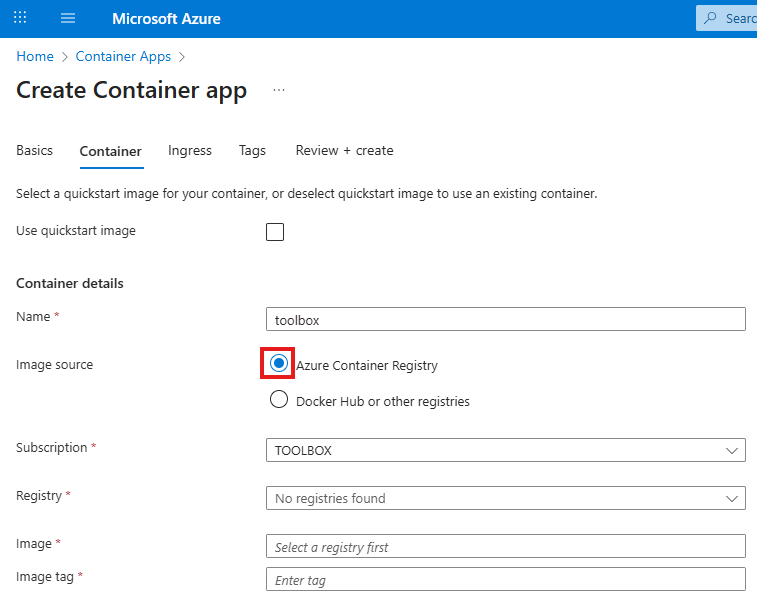
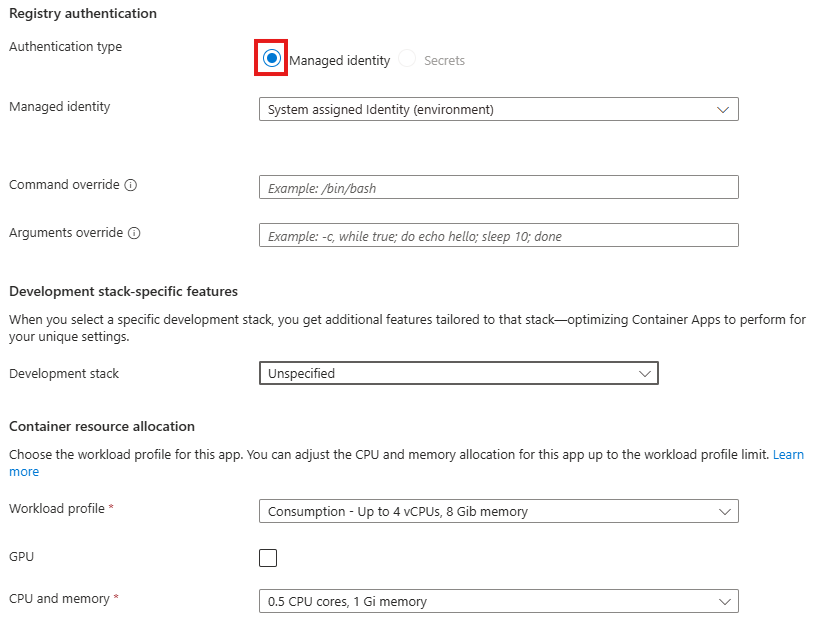
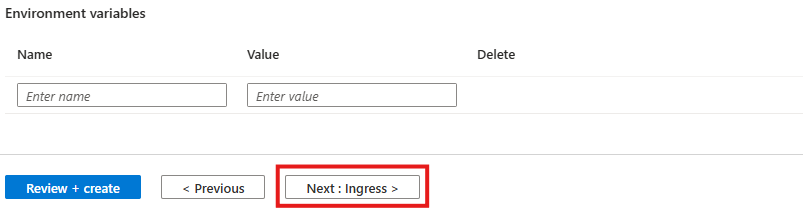
- If there is no available container image to deploy, select Use quickstart image. This will deploy a temporary Hello World web application.
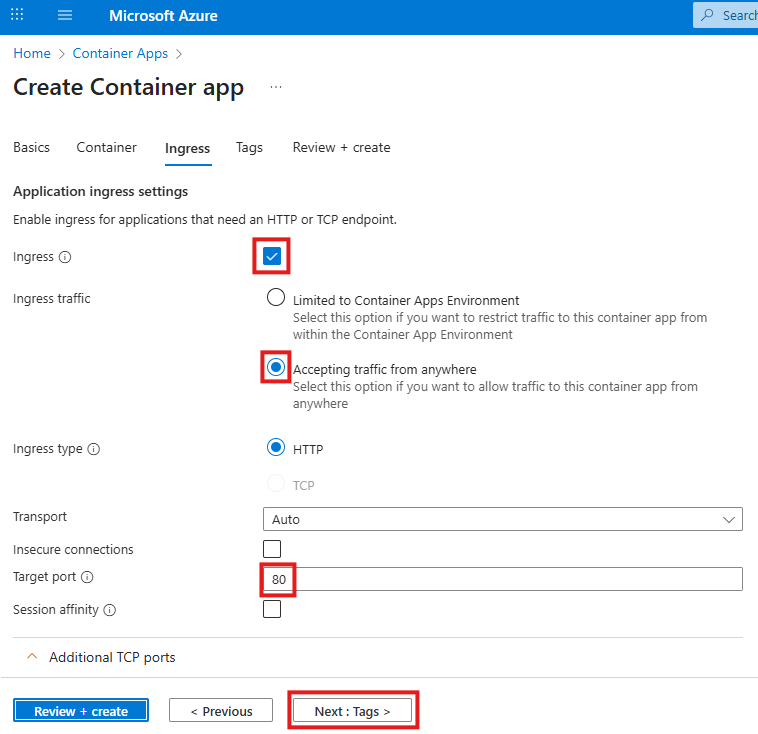
- For web applications enable ingress and traffic from anywhere, set the port to 80. Click the Next: Tags button
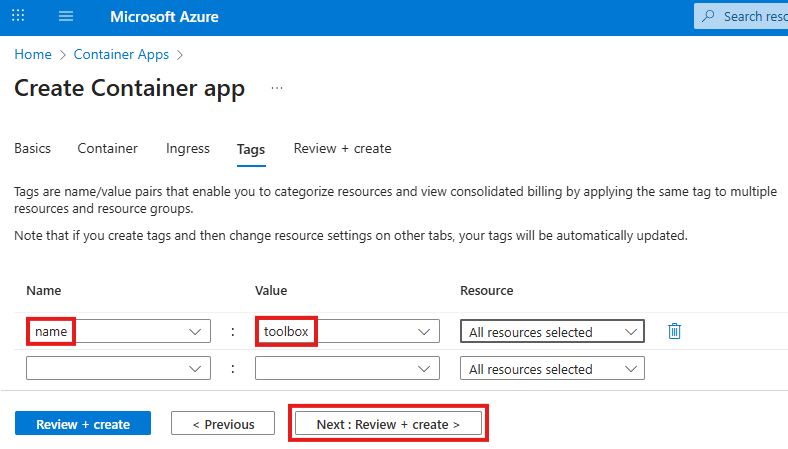
- Add a name tag to the application for cost tracking, and click the Next: Review + create button
- When the validation Passed
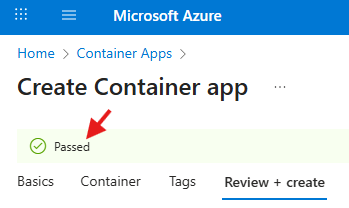
Click the Download a template for automation link at the bottom of the page
- On the next page click the Download button
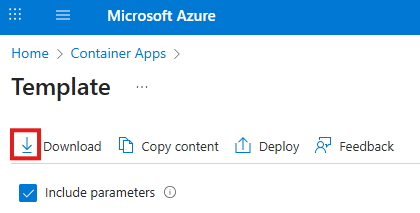
- In the upper right corner click the X to close the Template page

- At the bottom of the page click the Create button

- When the deployment is complete, click the Go to resource button
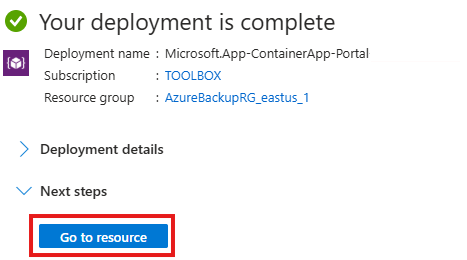
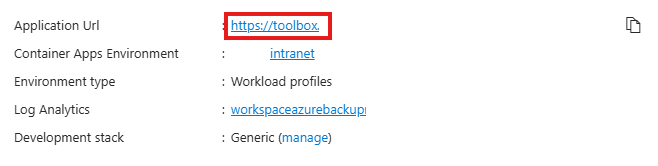
- In the upper right of the page click the application URL link to open it in the browser.