If you have created an Azure Resource Group, and want to change the name, unfortunately you cannot rename it. To change the name create a new resource group and move all resources from the old group to the new one.
Create a new resource group
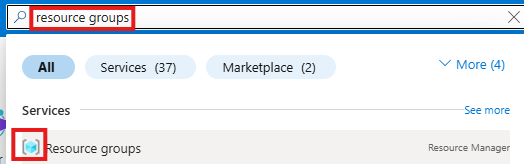
- In the main Azure page search for resource groups and select Resource groups from the list
- Click the Create button and select Create new resource group

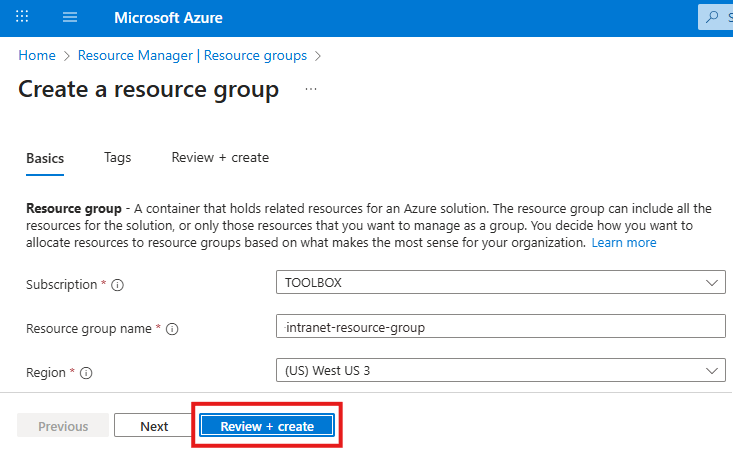
- Enter the name of the resource group and click the Review + cerate button
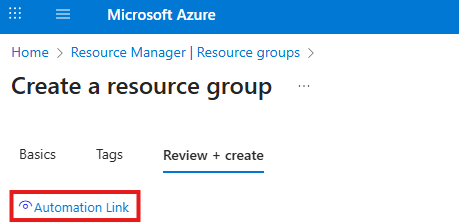
- Click the Automation link to download the creation script
- Click the Cerate button to create the resource group

Move the resources from the old resource group to the new one
- Open the old resource group, and click the first resource
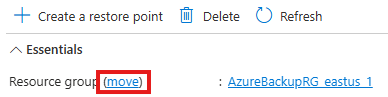
- Click the move link next to the old resource group name
- Select the new resource group from the list

- The validation status displays the current activity

- Some resources cannot be moved

- Restore points
- If the resource can be moved, click the Next button at the bottom of the page

- Select the checkbox and click the Move button

- To monitor the progress of the move click the Notifications icon. The source and destination resource groups are locked during the move, so only one move can be processed at a time.

- As the resource has been moved, the refresh button cannot display the new parent information. Go back to the Resource Group list and select the old resource group again top move the rest of the resources.