Skip to content
Pinter Computing

Knowledge Base for IT Professionals, Teachers, and Astronauts

Pinter Computing

Knowledge Base for IT Professionals, Teachers, and Astronauts

  • Home
  • Programming
  • DevOps
  • Project Management
  • Software and Hardware
  • Miscellaneous
  • Egyebek
  • About
  • Experience
  • Education
  • Contact
  • Home
  • Programming
  • DevOps
  • Project Management
  • Software and Hardware
  • Miscellaneous
  • Egyebek
  • About
  • Experience
  • Education
  • Contact
Close

Search

Home/DevOps/Servers/Error creating a Scheduled Task on Windows Server
Servers

Error creating a Scheduled Task on Windows Server

By Laszlo Pinter
January 6, 2015 2 Min Read
0

When the “Run whether user is logged on or not”  option is selected in the General tab of the Create Task window the Task Scheduler has to save the password of the selected user.

During the save the following error message appears:

Task Scheduler

An error has occurred for the task <task name>. Error message: The following error was reported: A specified logon session does not exist. It may have already been terminated.

To enable the Task Scheduler to save the password of the selected user, disable the Network access: Do not allow storage of passwords and credentials for network authentication security policy of the server:

  • Click the Start button of the Start Menu and enter SECPOL.MSC into the Search programs and files text field

Allow the password storage

  • On the left side select Security Settings | Local Policies | Security Options
  • On the right side double click the Network access: Do not allow storage of passwords and credentials for network authentication policy
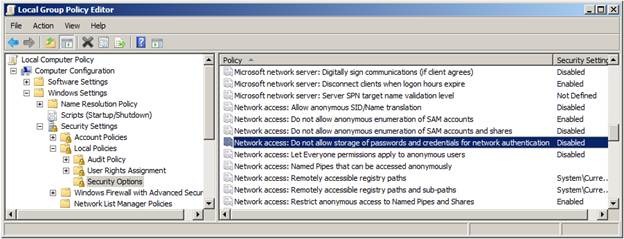
    Do not allow storage of passwords
  • Select the Disabled radio button and click OK
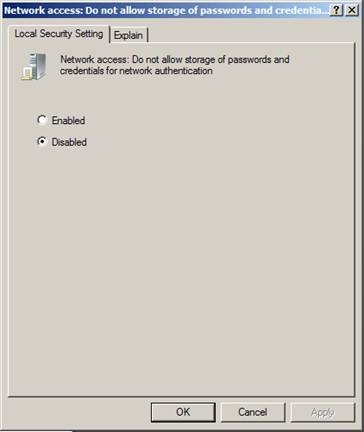
    Do not allow storage of passwords Disabled

Allow the user to log on as a batch job

We also need to enable the “Log on as batch job” right. For this, we need to add the user to the local policy, otherwise we get the error message during task creation:

This task requires that the user account specified has Log on as batch job rights.

  • On the left side select Security Settings | Local Policies | User Rights Assignment
  • Double-click the Log on as a batch job option and add the user to the list
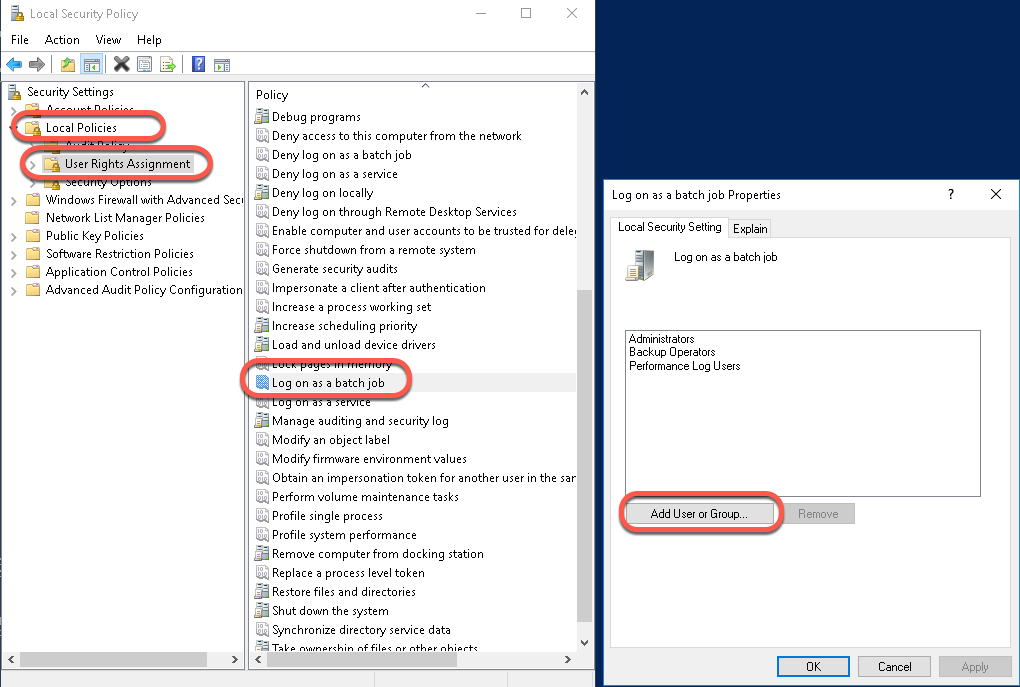
Tags:

Windows
Author

Laszlo Pinter

Follow Me
Other Articles
Previous

Enable File Level Authentication or set SSL requirements in IIS 7 and 7.5

Next

How to add a new table to an existing Microsoft SQL Server replication publication

No Comment! Be the first one.

Leave a Reply Cancel reply

Your email address will not be published. Required fields are marked *

Search

Last Changes

  • DevOps Engineering part 1. (Mac) - Make your Macintosh easier to use June 25, 2026
  • Japan travel tips June 22, 2026
  • How to stop the rain and snow in Cities: Skylines II June 20, 2026
  • Cities: Skylines II Developer Mode June 20, 2026
  • 'CSII_MANAGEDPATH' has incorrect path(s) when building Cities: Skylines II mod June 20, 2026

Tags

.NET .NETcore 3Dprinting ASP.NET Core AutodeskInventor AWS C# Chef cloud DevOps Docker EntityFramework Games Git Go iOS iPad iPhone iPod Java Kubernetes Linux MacOSX MSSQL MVC Node.js Packer PowerShell Python RDS RightScale Ruby security Splunk TeamCity Terraform TestKitchen Tomcat Ubuntu Vagrant VirtualBox VisualStudio Windows WordPress Xcode

Recent Comments

  • Zengei László on MyHeritage családfa exportálása és küldése emailben
  • Raúl Castillo on DynDns update error
  • MICHAEL on Windows Media Player 12 cannot find the album information
  • Nargis on Configure Epson ET-3850 scanning on Windows 11
  • Venczelné Zemen Erika on Delta S2302 termosztát programozása

–

  • Log in
  • Entries feed
  • Comments feed
  • WordPress.org
Copyright 2026 — Pinter Computing. All rights reserved.